
Squarespace has a “Related Products” feature, designed to encourage customers to explore your store by suggesting related products as they shop. It is a great way to help shoppers to find products in the same style, show products with too much inventory or help them discover new products that were recently added.
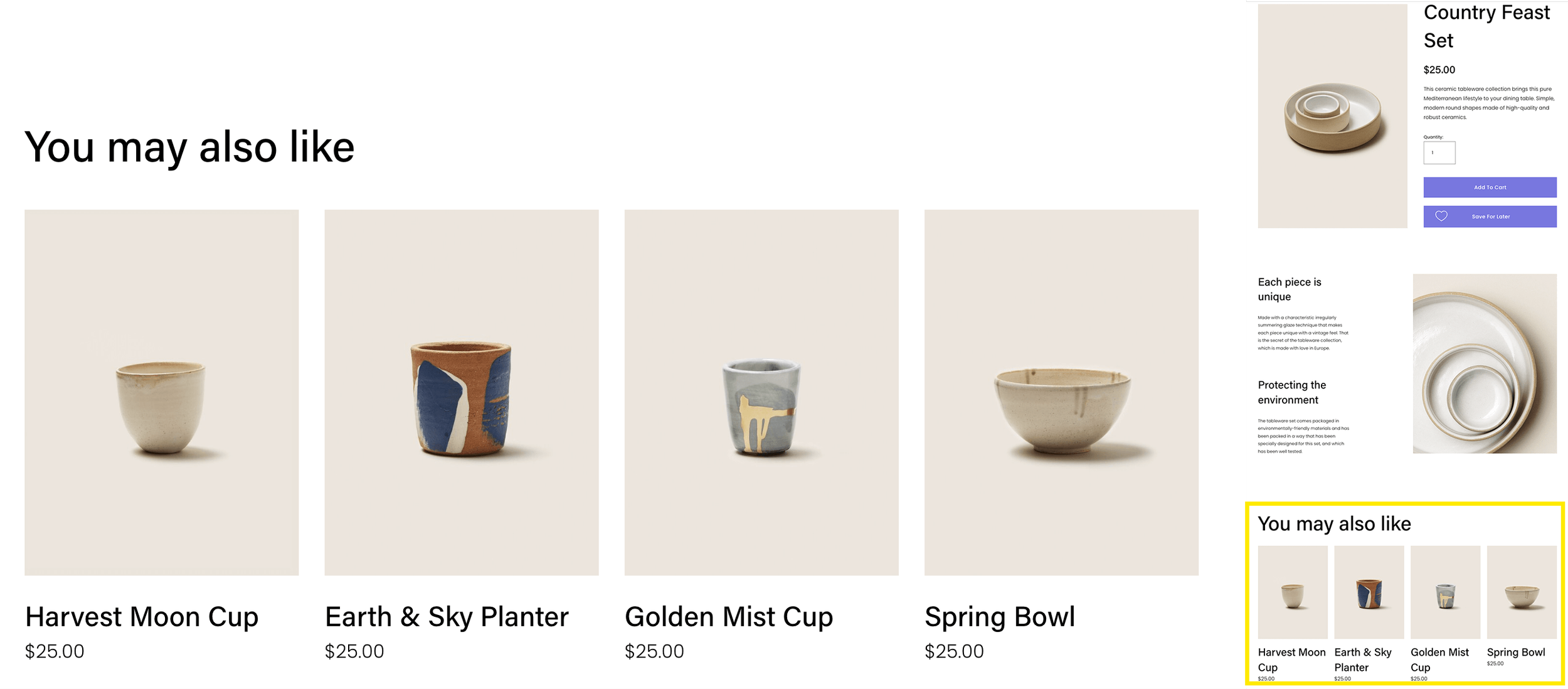
Related products display on Product Detail Pages (“PDPs”), the pages where a single product is normally shown in detail - see the screenshot (top-right) above.
You can set the title of the ‘Related Products’ section (the English default is “You Might Also Like”) and you can choose how products display with one of the these options:
Random - Display random products in the category or tag.
Recently added - Display the newest products in the category or tag.
Highest quantity - Display products with the highest stock level in the category or tag to help to clear overstock.
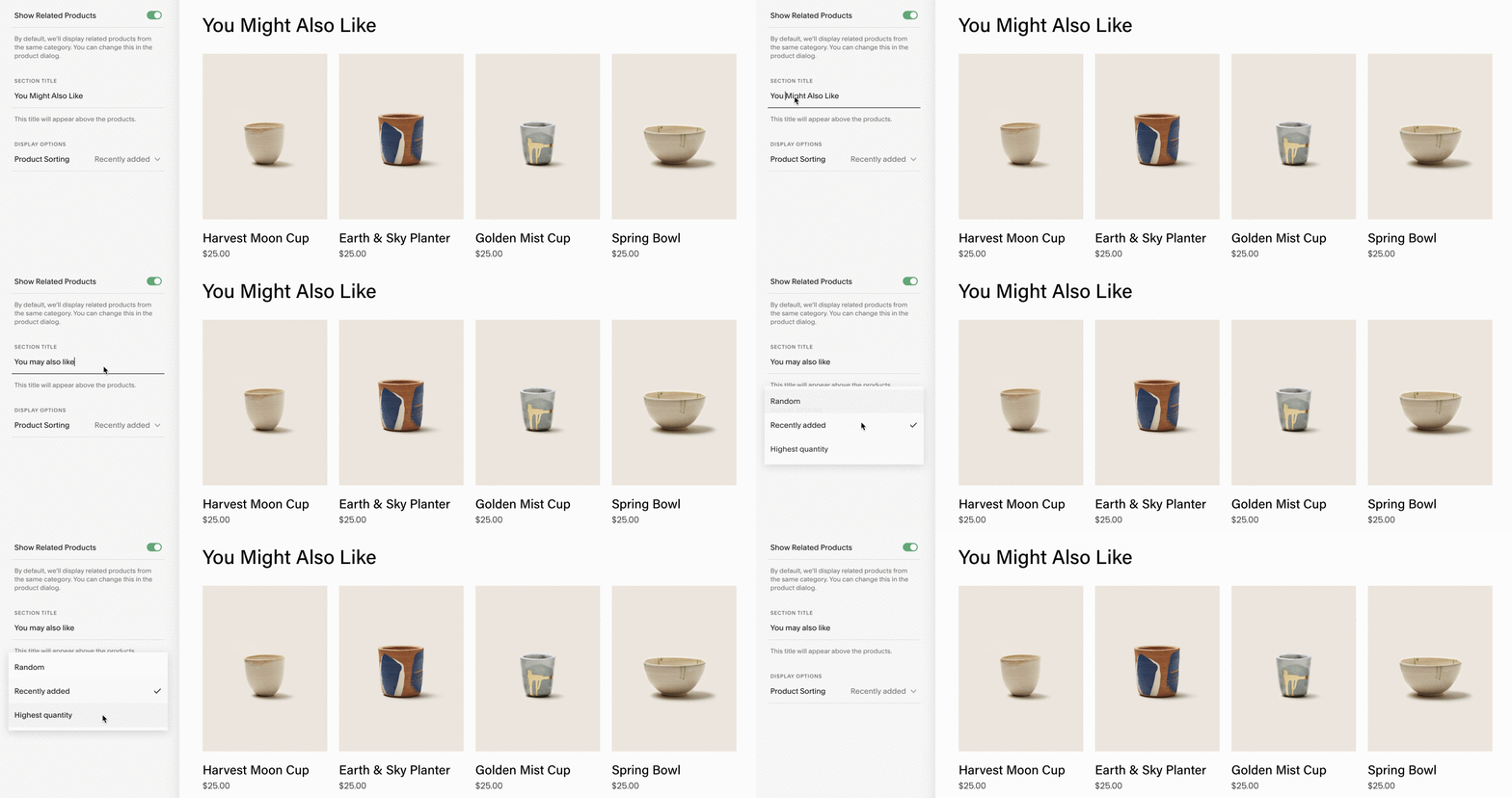
The Related Products settings
When you enable the Related Products feature (in Products & Services > Selling Tools > Related Products) up to five products from the same store page will appear below the main product. I have no idea why Squarespace decided to show five because you can only show a maximum of 4 columns in a store! For this reason, one of the first things that I do after selecting the number of product columns in the store (usually 3 or 4) is to add some Custom CSS so that only one row of related products appear. If you don’t do this, you’ll have a Related Products section that contains five products and appears on two rows:

The Squarespace Related Products appear in two rows instead of one.
To limit the number of Related Products to a single row, add the following to Design > Custom CSS and save the changes.
/* Limit number of Related Products   */
/* Copyright Soundfocus Digital Media */
/* Further info: https://sf.digital   */
/* Use freely in your Custom CSS      */
/* Do not copy or republish           */
.product-related-products .product-list-container .product-list-item:nth-child(n+5) {
  display: none;
}
The example CSS above will allow a maximum of four products to be displayed. I recommend that you match the number of related products to the number of columns on your main store page (also known as the Product List Page or PLP).
To display the Related Products to three products, change (n+5) to (n+4) and save your changes.
If you’d like to limit the number of related products to a different number on mobile, you can add a media query like this:
/* Limit Related Products on mobile   */
/* Copyright Soundfocus Digital Media */
/* Further info: https://sf.digital   */
/* Use freely in your Custom CSS      */
/* Do not copy or republish           */
@media screen and (max-width:767px) {
  .product-related-products .product-list-container .product-list-item:nth-child(n+4) {
    display: none;
  }
}
If you’d like to change the number of columns (rather than the total number of related products) you can add the custom CSS below. There are separate settings for desktop and mobile:
/* Limit Related Products on mobile   */
/* Copyright Soundfocus Digital Media */
/* Further info: https://sf.digital   */
/* Use freely in your Custom CSS      */
/* Do not copy or republish           */
.product-related-products.product-list [data-product-list-layout="grid"] {
  --product-list-num-columns-desktop: 3 !important;
  --product-list-num-columns-mobile: 2 !important;
}
I hope you find this free resource helpful. Please take a look at our range of Squarespace add-ons to further improve your website’s usability.
Paul
Squarespace Extensions for Squarespace 7.1


