If you’re using a Summary Block grid to display your content, you’ll know there’s an option to show a Read More link for each item, link to the original content.

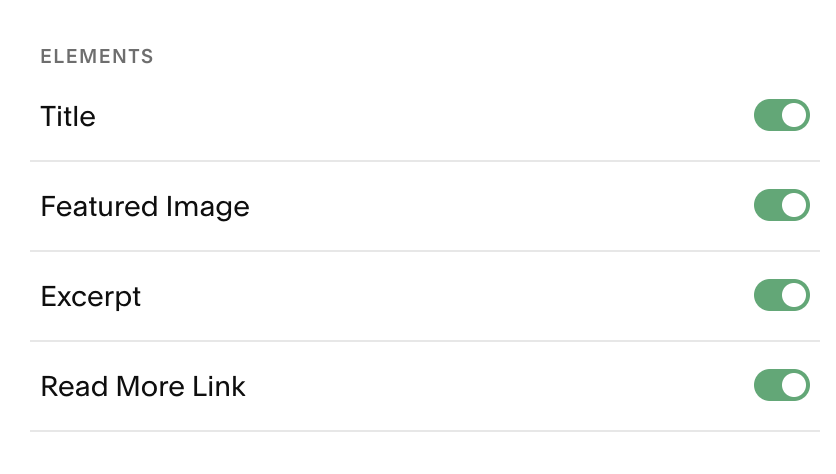
This adds a Read More → text link with an arrow. The arrow is somewhat annoying because it cannot be restyled or removed using the built-in settings. Also, many users prefer a button instead of a hyperlink.
You can solve both of these issues with a few lines of custom CSS. To try these solutions, open your page that contains the summary block grid and then go to Design > Custom CSS.
To style the link into a button with the arrow, add the following CSS:
/* Summary Block read more links     */
/* Style as buttons with  arrow      */
/* Copyright Soundfocus Digital      */
/* https://sf.digital                */
.sqs-block-summary-v2 .summary-read-more-link {
  border: solid 1px #111;
  opacity: .62;
  padding: 7px 14px;
  position: relative;
  width: 125px;
  &:hover {
  opacity: 1;
  }
}
After adding the CSS, it should look something like this:

Removing the arrow
To style the link into a button and remove the arrow from the ‘Read More’ link, add the following instead:
/* Summary Block read more links     */
/* Style as buttons with no arrow    */
/* Copyright Soundfocus Digital      */
/* https://sf.digital                */
.sqs-block-summary-v2 .summary-read-more-link {
  opacity: .62;
  padding: 10px;
  position: relative;
  visibility: hidden;
  /* Styling on hover */
  &:hover {
    opacity: 1;
  }
}
.sqs-block-summary-v2 .summary-read-more-link::after {
  border: solid 1px #111;
  content: 'Read more'; /* New text */
  display: block;
  margin-left: -10px;
  padding: 7px 10px;
  position: absolute;
  top: 0;
  visibility: visible;
}
This will produce something like this: