
Squarespace have their own Scheduling service (Acuity Scheduling). Unfortunately this additional cost option isn’t good for overnight or multi-day bookings. It simply doesn’t support bookings that span midnight!
If you have a rental property, camp site, bed & breakfast or guest house you’ll therefore need to use a third party product with your Squarespace website. Fortunately
If you're looking for a booking solution that integrates well into a Squarespace website, I recommend a third party product called Lodgify (affiliate link). In my experience, this is one of the best solutions, both for the potential customer as well as for the merchant. The user interface is on par with Squarespace whereas many other booking products provide a really poor experience (think early 2000s era web pages).
It's pretty straightforward to add a search/calendar to Squarespace because Lodgify provide the embed code for your account, and you can add this to Squarespace using a Code Block.
Here’s an example of a Squarespace site, showing the Lodgify widget on the home page. This was created by pasting the ‘search widget’ code into a Code Block at the top of the page!
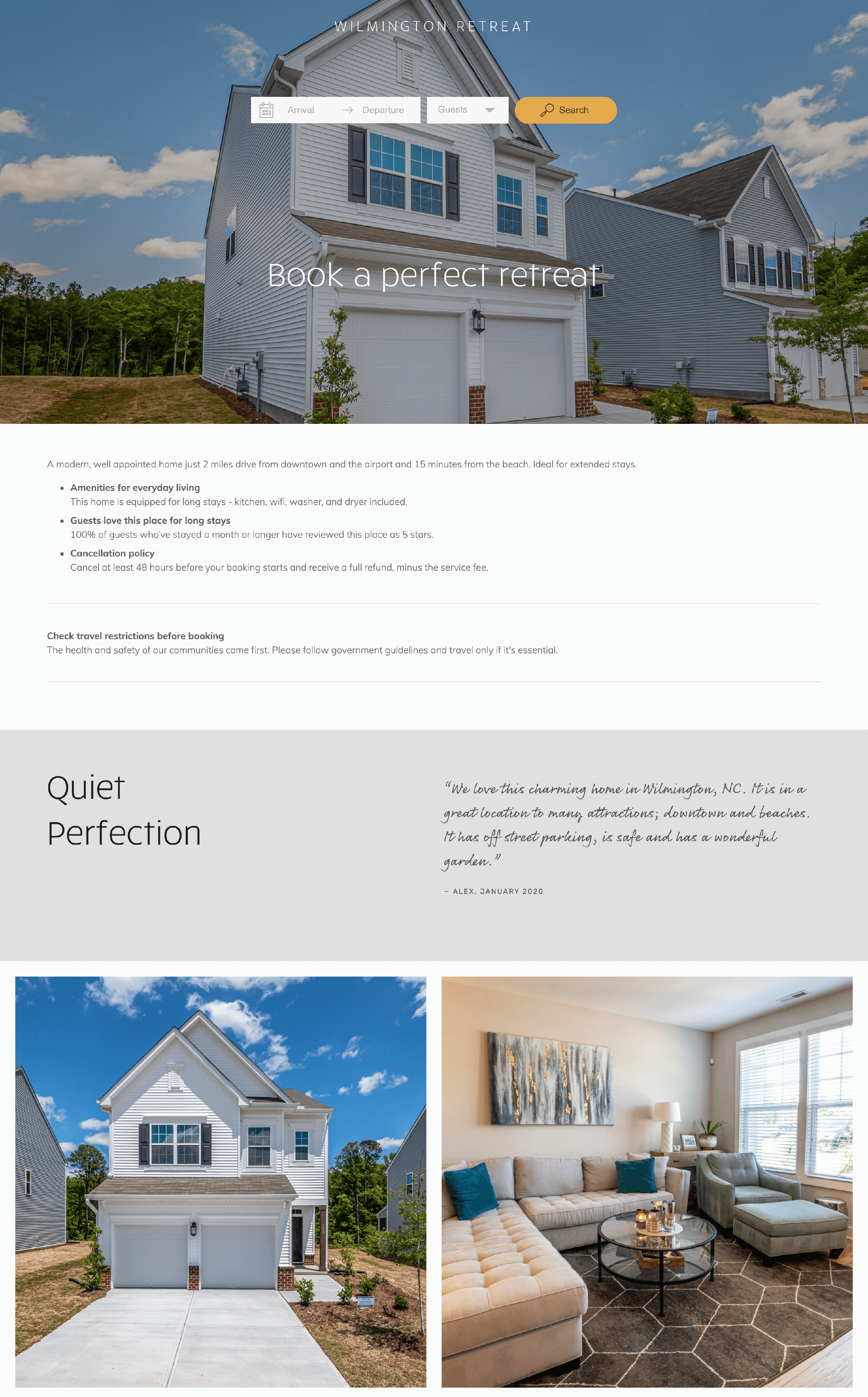
Example Squarespace site using Lodgify widget for bookings and availability
Customers can select availability from the live calendar and then proceed to the Lodgify booking page to complete their booking and payment.
The Lodgify user interface has the same excellent design aesthetic as Squarespace, whereas many other booking products provide a really poor experience for customers, looking like something from the early 2000s.
Lodgify (affiliate link) offer free trials so it’s really easy to try this during your Squarespace trial. Note that when your Squarespace trial ends, you’ll need to be on a Squarespace Business Plan or Commerce Plan, as their Personal Plans aren’t suitable for a business application like this.
Signing up for Lodgify
1. Click here to start a seven-day free trial of Lodgify (affiliate link). You’ll see the pages below:
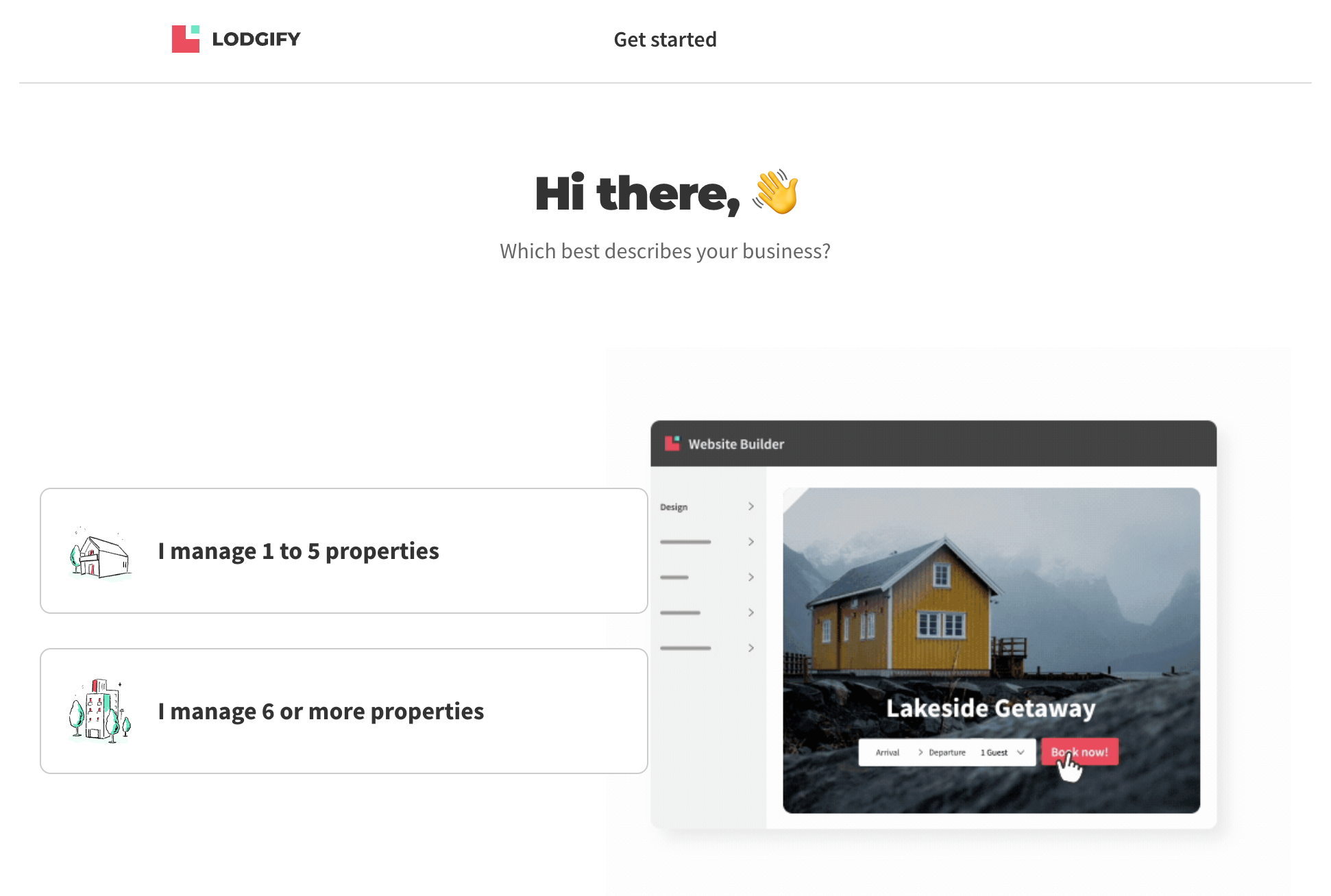
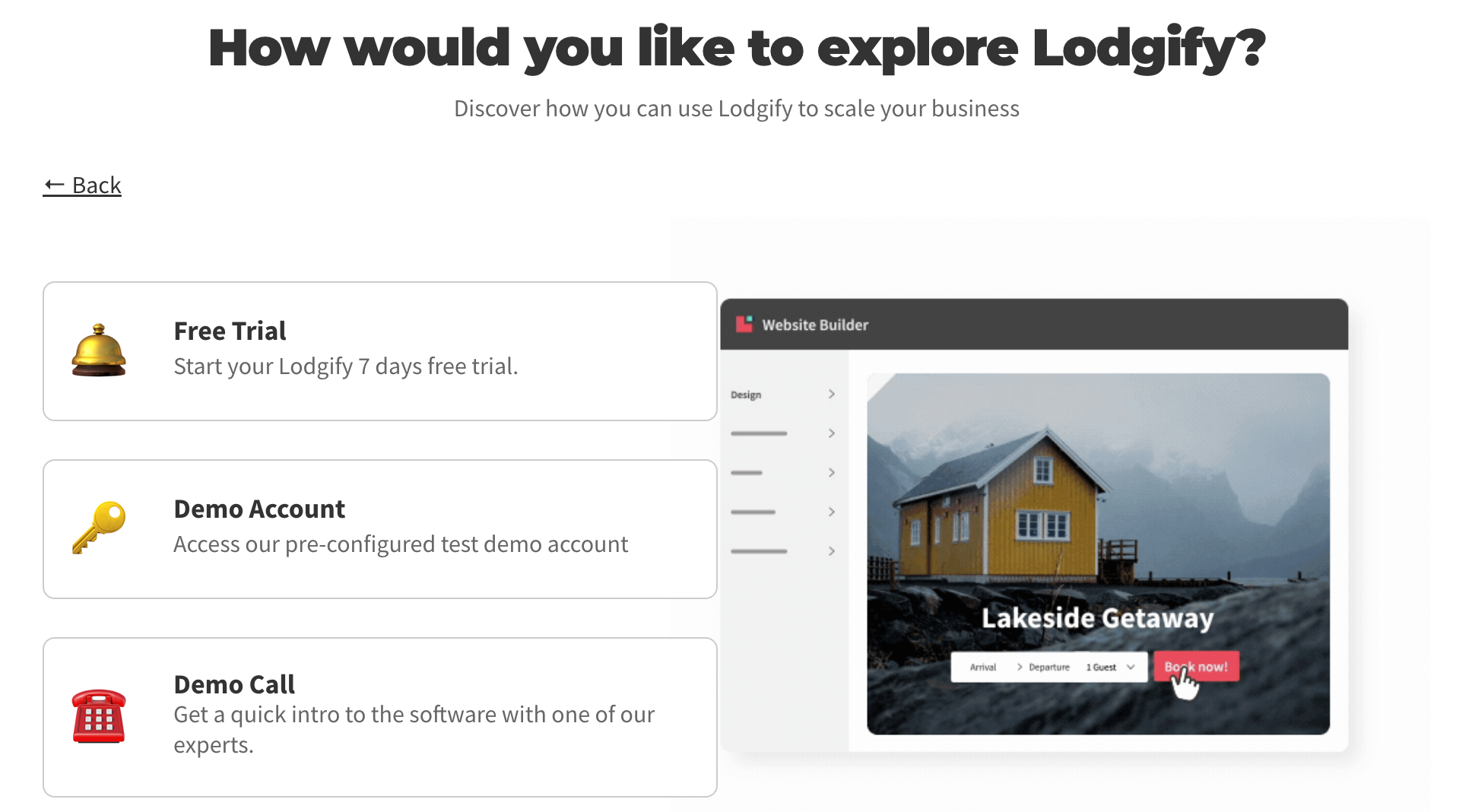
2. First, you’ll be asked how many properties you manage.
3. Next, click Free Trial to start a no-obligation trial.
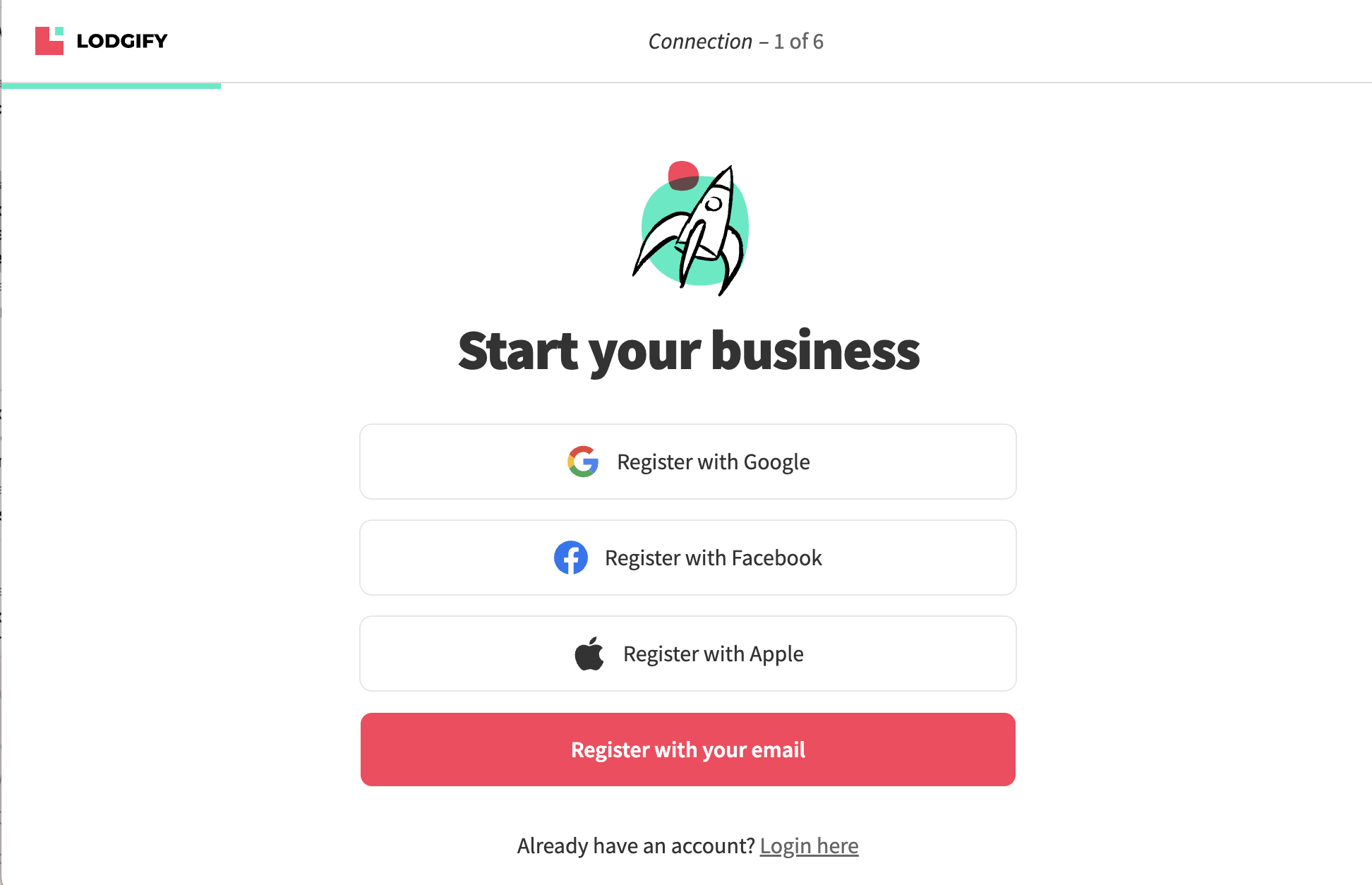
4. You’ll be prompted to register for a Lodgify account. Choose the method that suits you best.
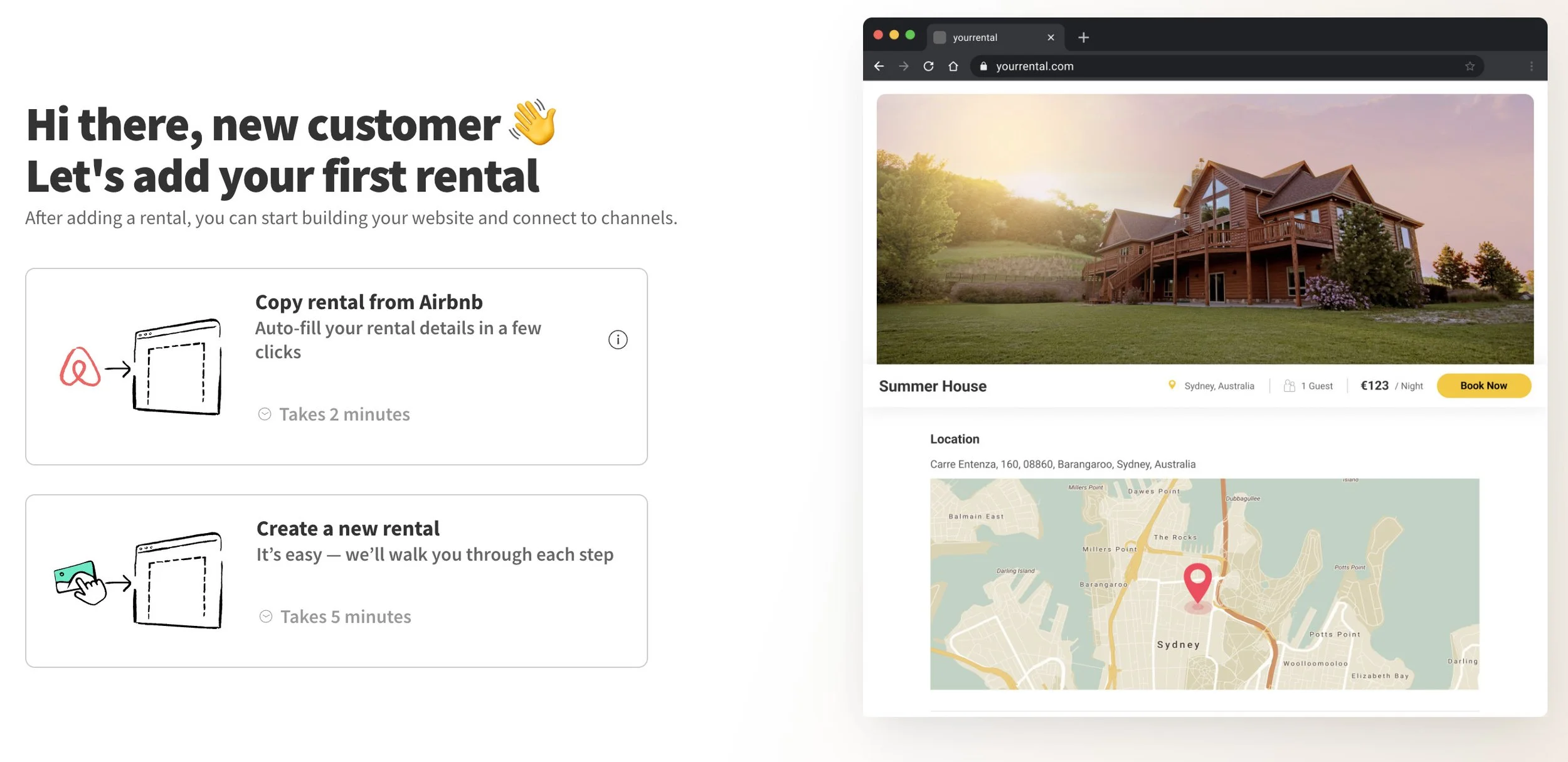
5. Choose Create a new rental.
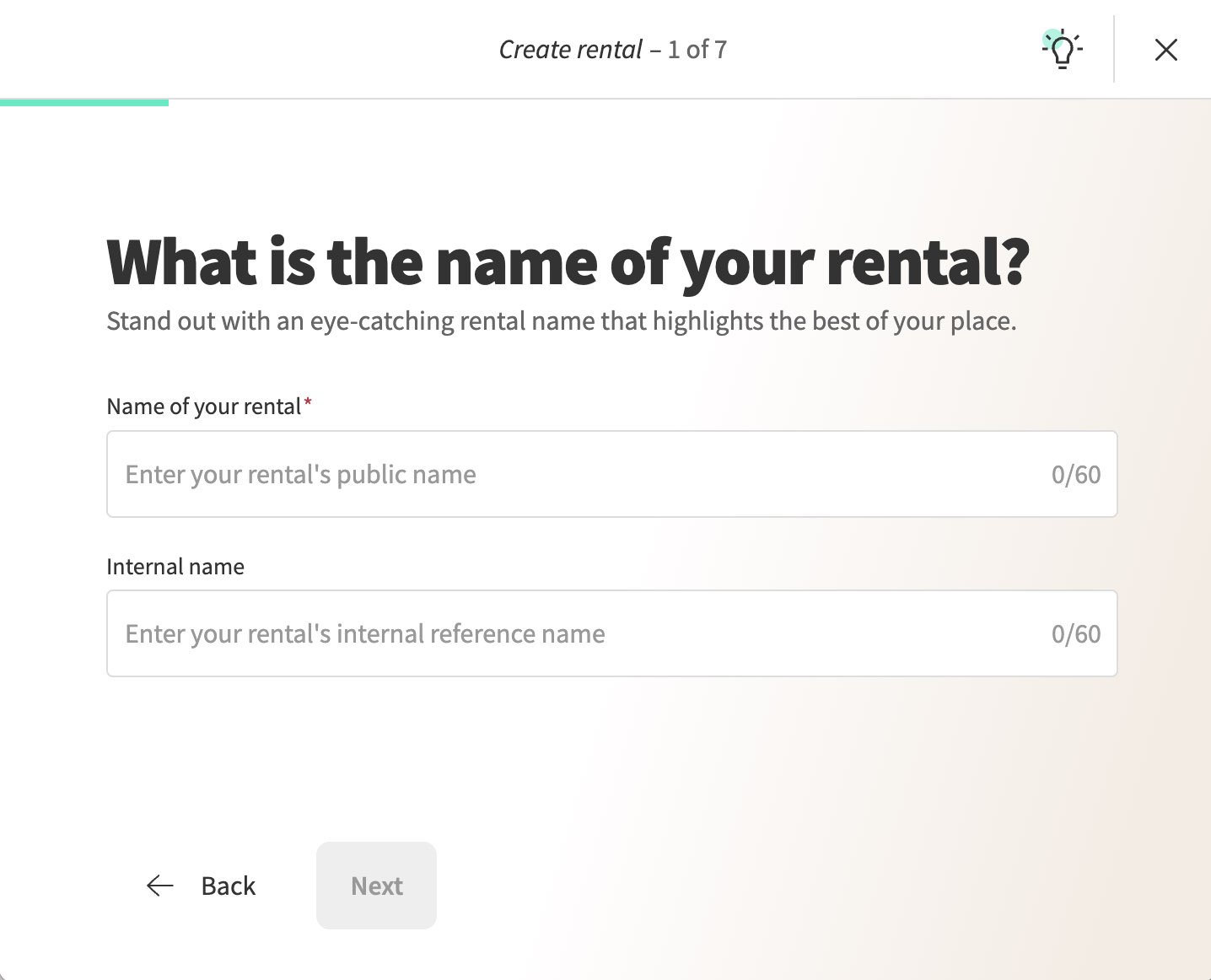
6. Give your rental a name and click Next.
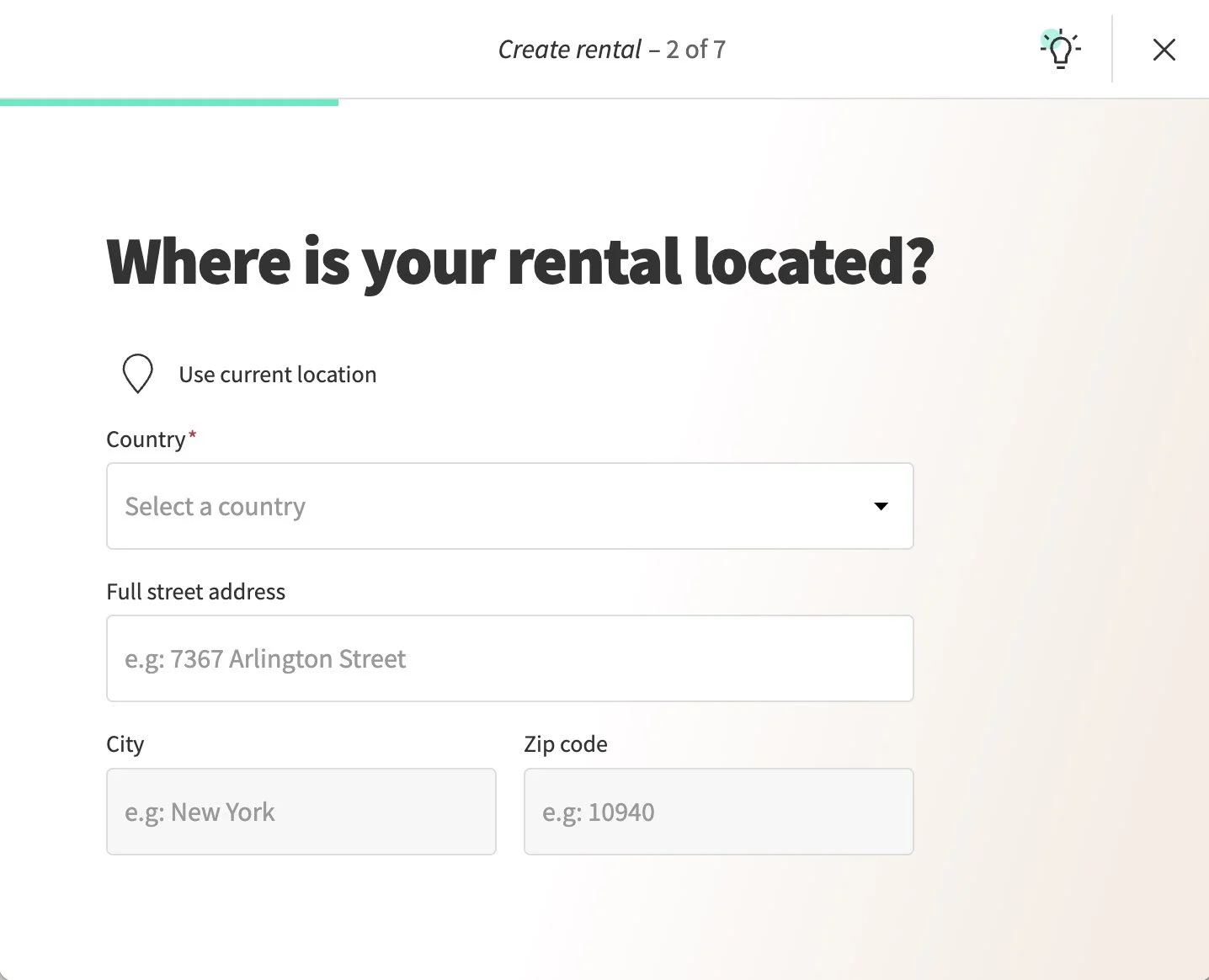
7. Provide the address of your rental and click Next.
8. You’ll be prompted to create a ‘website’. Although you won’t need a separate website, this process also allows you to create custom code that you can add to your Squarespace website. Lodgify refers to this code as an ‘external widget’.
9. After adding the basic property details, including the rate, click on External widgets. You should see a screen like the one below. Here you can choose whether you want to create a ‘Search box’ or a ‘Booking box’. If you want users to be able to book a specific property, or you only have one property, you should use the Booking box. If you’d like them to check availability across your property portfolio by entering some some dates, then you can create a Search box.
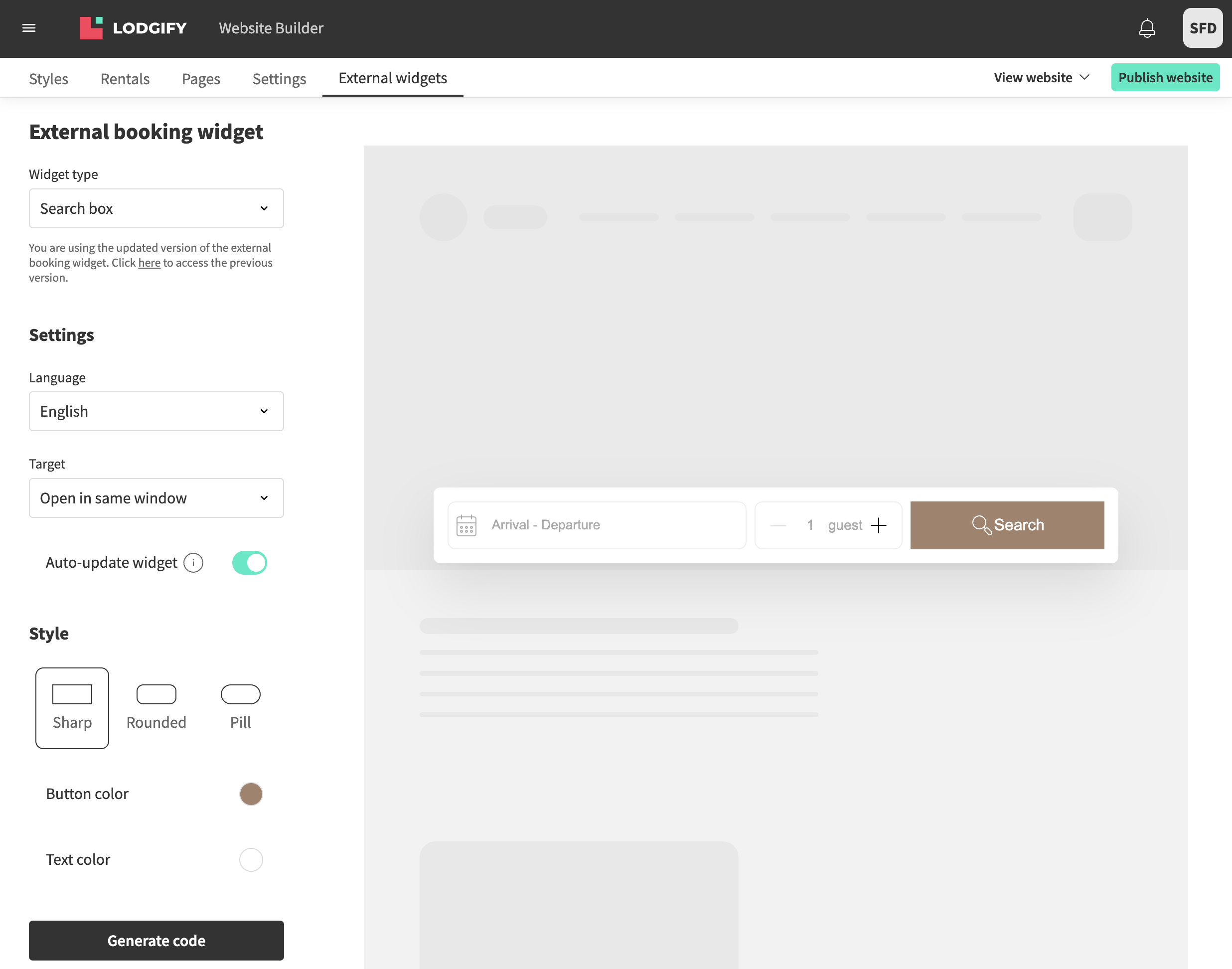
10. Choose the settings that suit your needs. For example, you can change the colours and the button shape to match your Squarespace website.
11. When you’re happy with the preview, click Generate code.
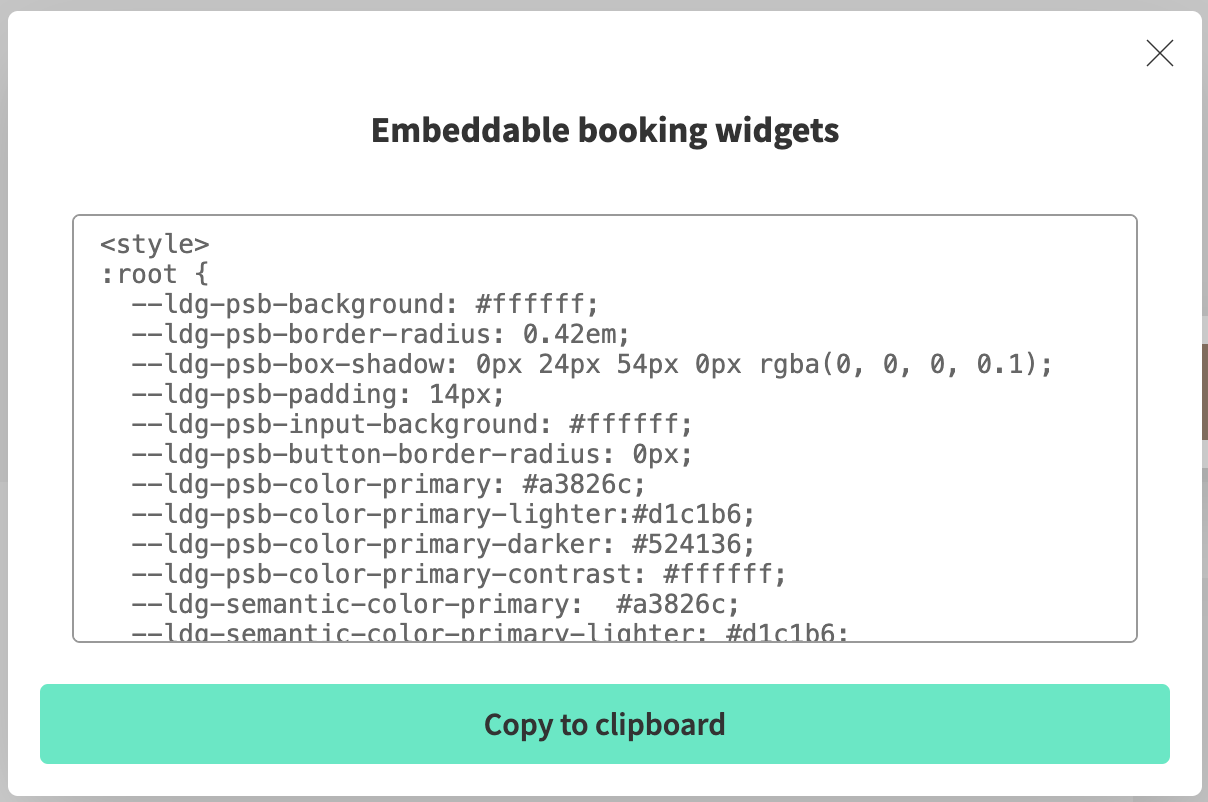
12. A small window will appear showing the code. Click Copy to clipboard and then go to the page on your Squarespace website where you’d like to add the ‘widget’.
13. Add a Code Block to the page. Some page sections do not allow you to add blocks so, depending on the type of page section, you may need to add a new blank page section first, and then add the Code Block to the new section.
14. Delete the sample code from the Code Block and paste the Lodgify code into it.
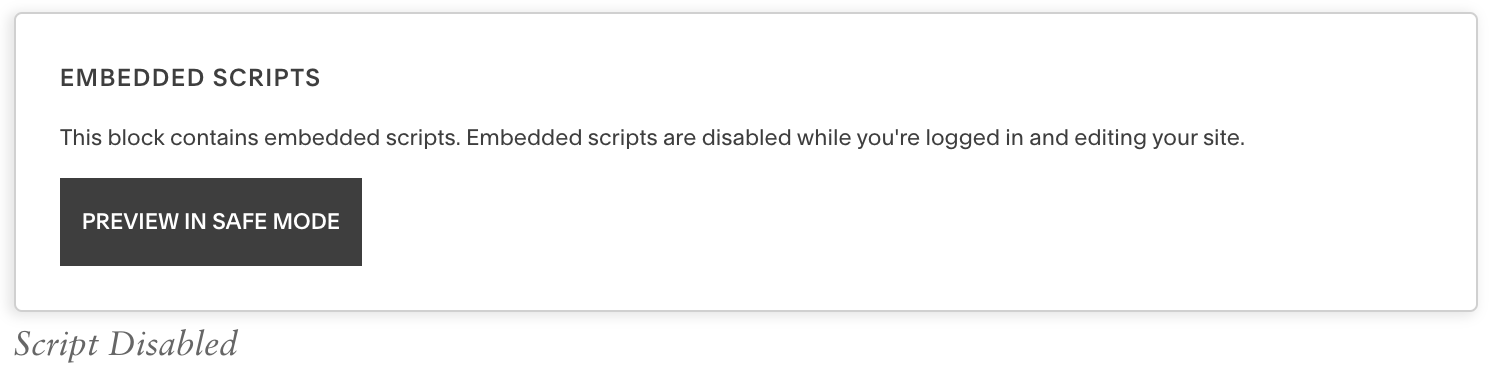
15. Close the Code Block editor and Save the page. The Code Block may show an ‘Embedded Scripts’ message. You can ignore this as it should disappear when you exit editing mode. If it doesn’t, you may need to click the preview button.
16. You should now see your Lodgify widget on your Squarespace website.
