
Product image aspect ratios on Squarespace 7.1
Products V2
This guide was updated in January 2026 and is compatibile with the changes that Squarespace made to product pages between July and November 2025 (Products V2 DOM).Great product images are an important part of running an online store and it’s usually a good idea to add product images that are all the same aspect ratio. Fashion images are usually portrait but other product images are typically landscape or square.
However, artwork and photographic products usually come in both portrait and landscape aspect ratios, and Squarespace doesn’t have a feature for this. You can have portrait, or landscape, but not both.
Product page types
Before discussing product images, it may help to understand how Squarespace structures products on all sites. Products are organised in two parts:
Product List Pages (PLPs) are landing pages that show multiple products on a long page.
Product Detail Page (PDPs) show the details of one product at a time.


Here’s a solution to allow you to have landscape artwork (or other product images!) and portrait images on both Product List Pages and Product Detail Pages - on desktop and mobile.
Step 1
First, set the aspect ratio of your product images to Landscape. You can only do this when viewing the Store (PLP) page within the section editor.
To do this, follow these steps or watch the video below:
View a Store page, otherwise known as a Product List Page or PLP, where multiple products are shown.
Click EDIT.
Click the Pencil icon.
Scroll down to the Aspect Ratio setting and ensure 3:2 Standard is selected.
NOTE: The Aspect Ratio options will only appear if you are using the “Simple” PDP with the gallery “Slideshow” or “Carousel” layout only. The “Stacked” option does not allow the aspect ratio to be set.
Click Done and Save.
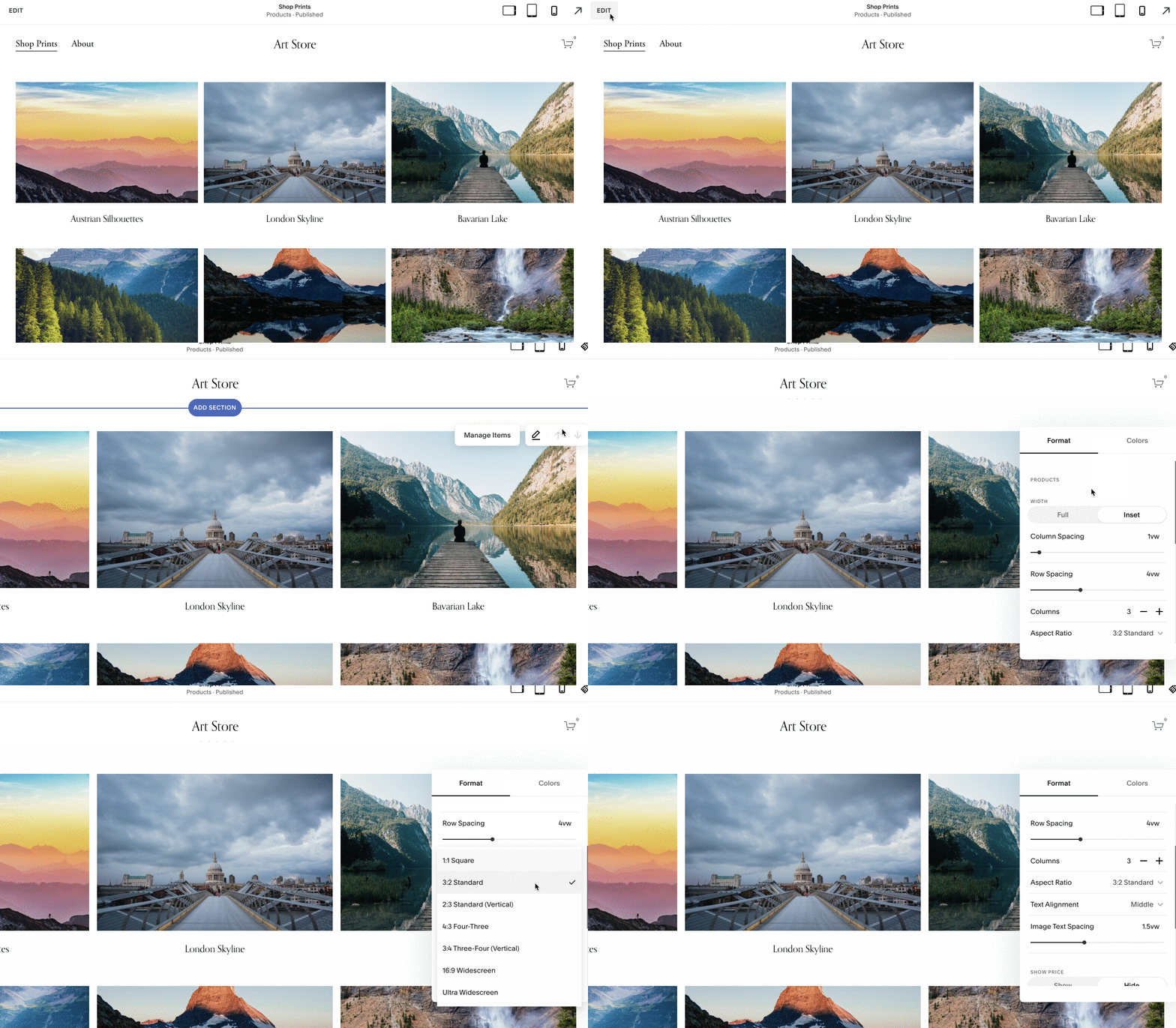
How to set the product image Aspect Ratio
After making these changes, all the product images should be shown in 3:2 Standard (or Landscape) mode.
Step 2 - Add a tag
The next step is to tag individual products to state whether the artwork is portrait or square. It isn’t necessary to tag landscape artwork as you’ve set this as the default in step 1 above.
To allow portrait artwork products to be shown correctly in 2:3 Standard (Vertical) mode, add a Tag called ‘portrait’ to the product. You can do this by editing each product individually. For information about tags, see this Squarespace guide: Categories and tags.
To allow square artwork to be shown correctly in 1:1 mode, add a Tag called ‘square’ to the product.
Custom CSS
Once you’ve added a tag to some of the products, add the following to the Custom CSS panel and save your changes.
/**************************************
Show Product Images in correct aspect ratio
Copyright SF Digital https://sf.digital
Use freely in your Custom CSS but
do NOT re-publish.
**************************************/
/* PLP: Images tagged as portrait */
.product-list .product-list-item.tag-portrait .product-list-item-link .product-list-item-image .grid-image-wrapper {
    aspect-ratio: 2/3;
}
/* PDP: Images tagged as portrait */
.product-detail.tag-portrait .product-gallery-slides {
  aspect-ratio: 2/3;
}
/* PLP: Images tagged as square */
.product-list .product-list-item.tag-square .product-list-item-link .product-list-item-image .grid-image-wrapper {
    aspect-ratio: 1/1;
}
/* PDP: Images tagged as square */
.product-detail.tag-square .product-gallery-slides {
  aspect-ratio: 1/1;
}
/**************************************/
Your product images should now be shown in the correct aspect ratio, with some shown in portrait and some in landscape.
On the Store page, it may look a little strange if you have different shaped images in the same row, so you may want to reorder them so that products are shown in rows that are all portrait or all landscape.
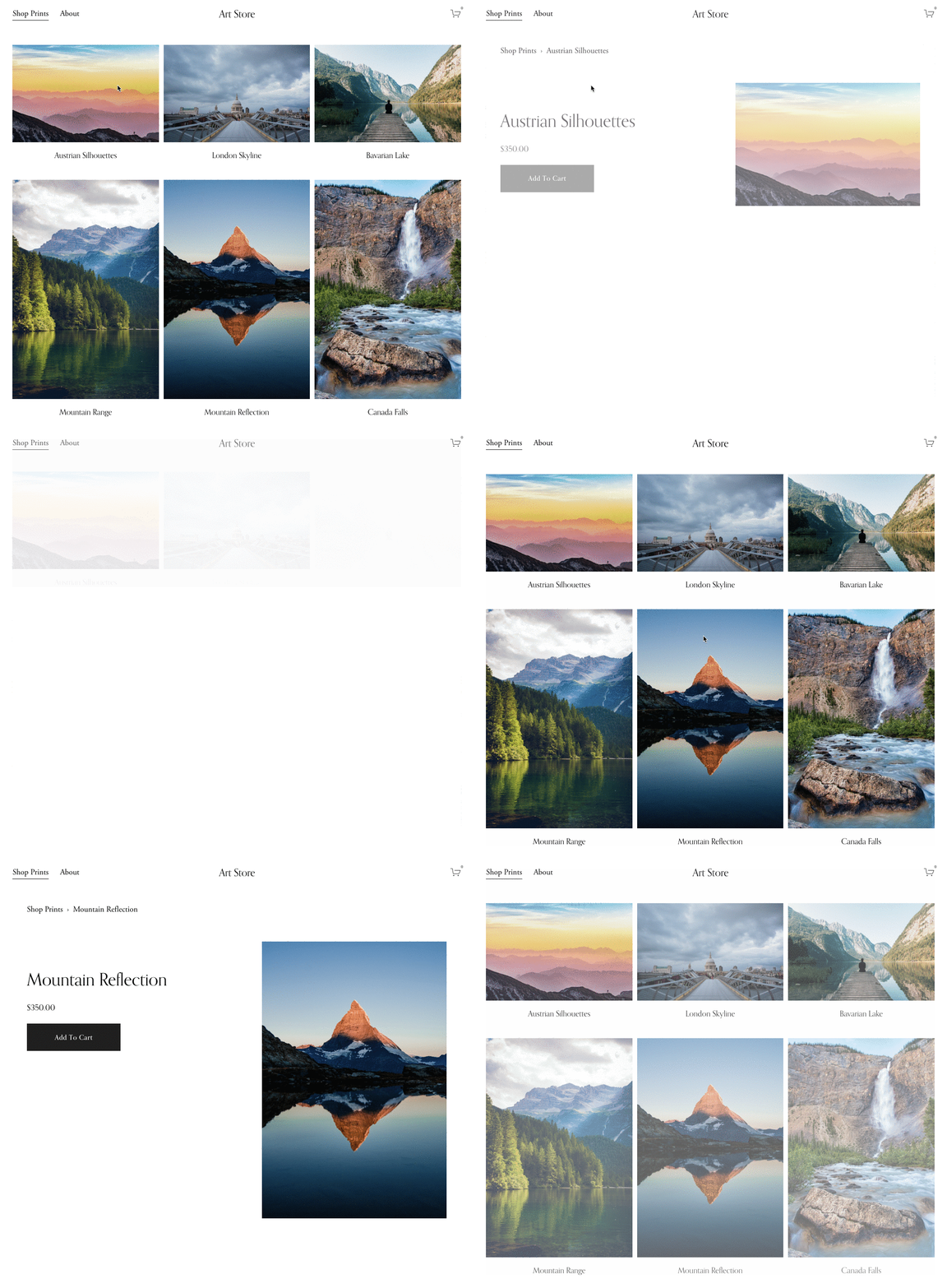
How does it work?
Squarespace has updated the way images are managed on Store and Product pages. They now use the aspect-ratio property to set the aspect ratio of images. The example above uses the standard portrait ratio of
How to adapt this for other image aspect ratios
Other aspect ratios you could use include:
1 / 1 (Square)
3 / 2 (Landscape)
16 / 9 (Wide)
4 / 3
3 /4
Cart page aspect ratios
Lastly, don’t forget the cart page! By default, product images are cropped to a 1:1 aspect ratio (a square) and completely ignore the focal point that has been set.
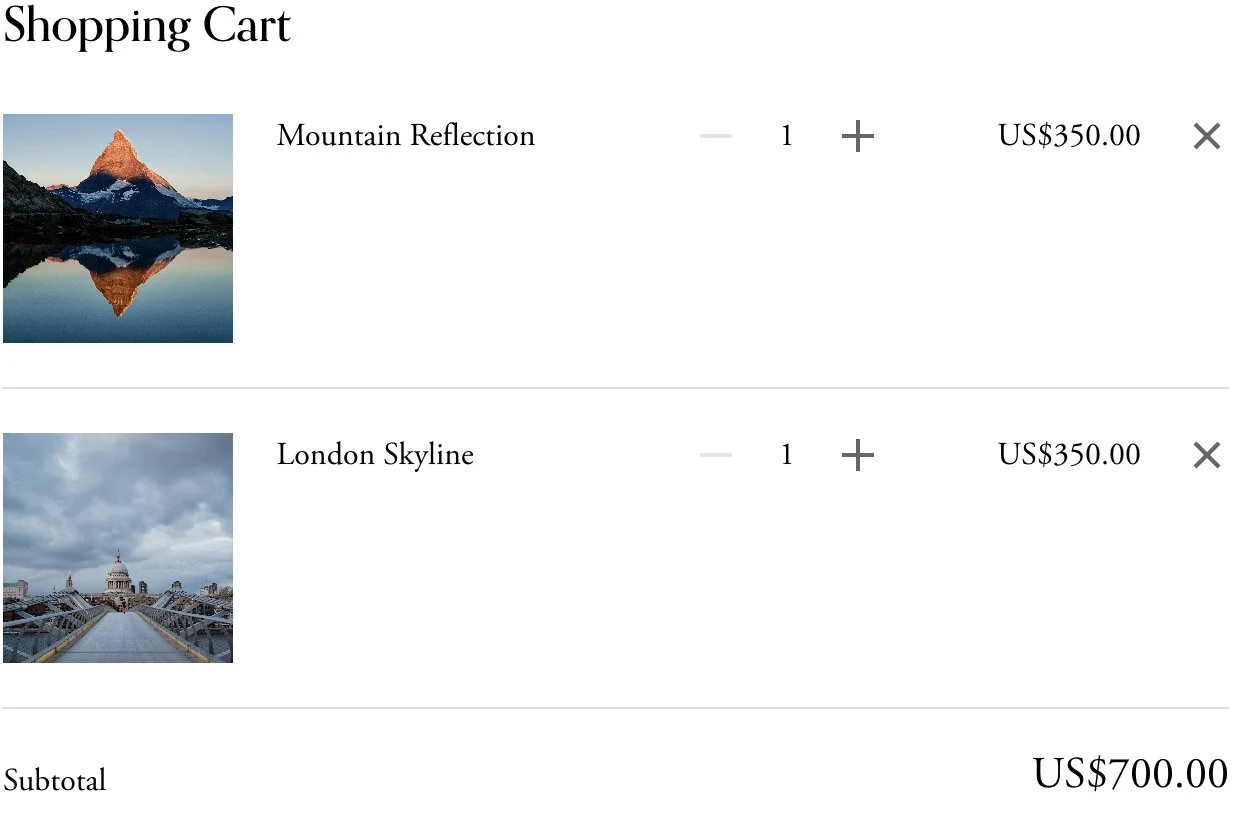
Default product image formatting on the Cart page
This can confuse potential customers who think they’re about to purchase a landscape painting but see this square and panic; cart abandonment is a real risk! Strangely, Squarespace reverts to the correct aspect ratio when the user reaches the checkout page but it may be too late by then.
You can solve this issue with some more Custom CSS:
/**************************************
Cart page: correct image aspect
Copyright SF.DIGITAL https://sf.digital
Use freely in your Custom CSS but
do NOT re-publish.
**************************************/
.cart-row .cart-row-img-wrapper .cart-row-img {
  background: no-repeat 50% 0%;
  background-size: contain;
}
This should restore the original aspect ratios of the images, like this:
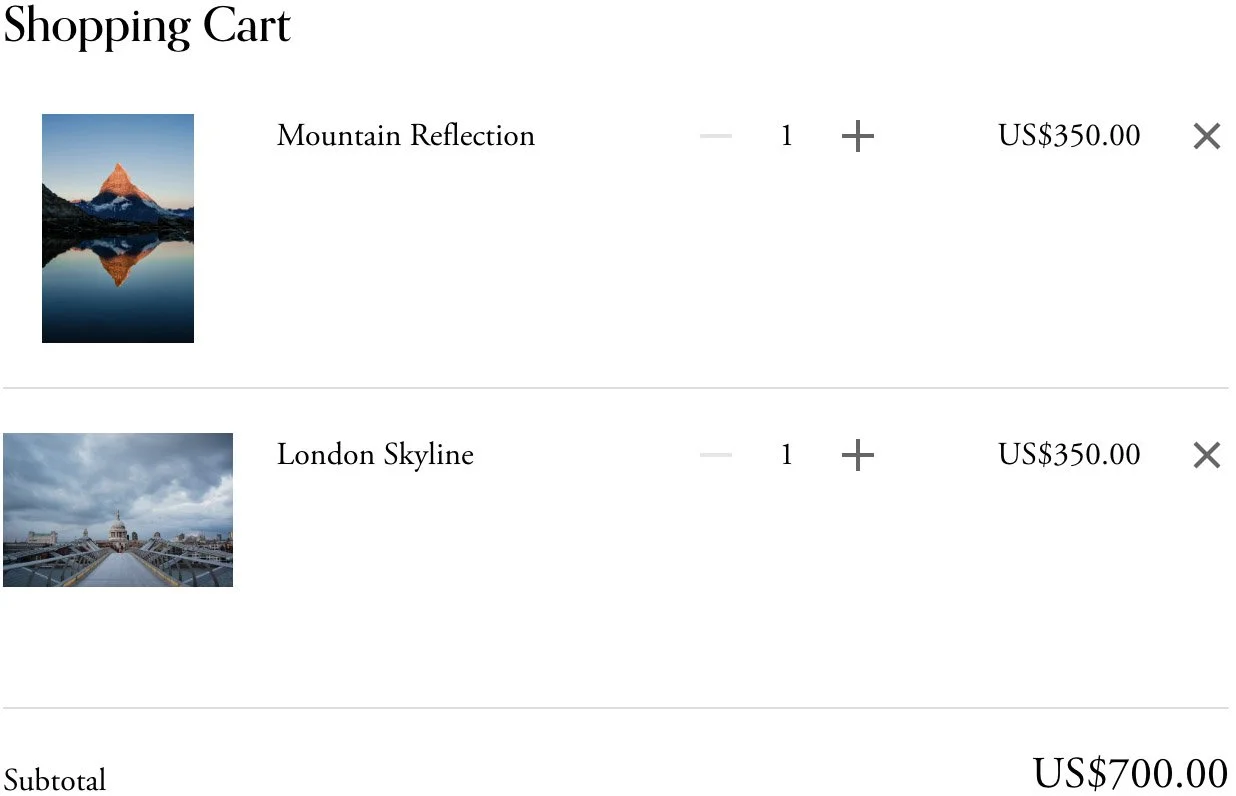
Cart page when using Custom CSS (provided above)
