
Got a white site logo?
I’ve heard from a number of Squarespace users who print receipts to use as a pick list, and to send to the customer with the physical goods - just like Amazon used to do.
However, if their Squarespace website has a white logo, they are usually concerned to discover that it isn’t visible on white paper!
Go green!
My first response is to try to convince them not to use paper. Sending paper receipts creates unnecessary waste and should be avoided, right?
By avoiding paper receipts, small businesses demonstrate a commitment to sustainability which can resonate positively with environmentally conscious consumers.
Pick lists can now be viewed on an iPhone or iPad using the Squarespace app. No need to print the order.
The customer will already have received a digital receipt by email. Do they need a paper copy too?
I need to print receipts!
That said, if you do need to include a paper receipt with the order, this white logo problem can be a real pain, as there isn’t a way to change it within the Squarespace platform.
However, if you print your receipts from a browser on a computer, I have a solution for you using something called a bookmarklet. A bookmarklet is a browser ‘bookmark’ or ‘favourite’ that runs some code instead of opening a webpage. With a bookmarklet you can manipulate the content of the current tab, and invert the colours used in the logo.
Installing the Bookmarklet
Here’s the bookmarklet code:
javascript:(function() {
    if (window.location.href.includes('api/2/commerce/orders/print')) {
        var style = document.createElement('style');
        style.type = 'text/css';
        style.innerHTML = '.squarespace-order-wrapper div img { filter: invert(1); }';
        document.head.appendChild(style);
    }
})();
To use the code, follow these steps:
1. Copy the entire code above.
2. Create a new bookmark in your browser.
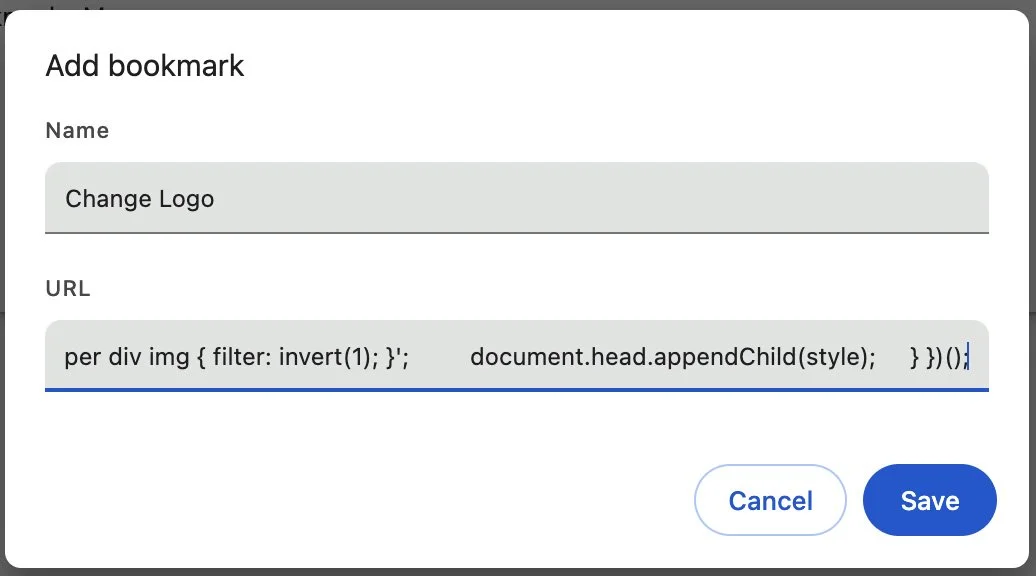
3. Name the bookmark something like "Change Logo".
4. Paste the code into the URL or Location field of the bookmark.
5. Save the bookmark to your bookmark bar in your browser so you can easily click on it when when viewing a receipt.
Using the bookmarklet
1. Go to your Orders panel and click Print Receipt. to print a receipt. The receipt will open in a new tab and the print dialog will open.
2. Cancel the print dialog.
3, Click the ‘Change Logo’ bookmark that you added to the browser toolbar. The logo colours will invert, making a white logo go black.
4. You can now use the browser Print option to print the receipt.
Changing the document title
By default, the document has the title ‘Order Invoice’ even though it is referred to as a receipt. If you would like to replace the title ‘Order Invoice’ with ‘Order Receipt’ you can use the following bookmarklet to change the title. It can be installed in the same way as the other bookmarklet. It works with both single and multiple receipts.
javascript:(function(){let t=document.querySelectorAll('.squarespace-title');t.length?t.forEach(d=>d.textContent='Order Receipt'):alert('This page does not contain any receipts.')})();
Before running the bookmarklet, close the print dialog that Squarespace automatically opened. You can open a new one after running the bookmarklet.
