
I’ve received so many enquiries asking how to connect a Squarespace Domain to a Squarespace Website, that I purchased a domain and wrote this guide!
You’d think this would be simple but, if you’re reading this guide, you know that Squarespace haven’t made this as easy as it should be! It’s really easy to buy the domain, but unnecessarily complicated to connect the domain to your Squarespace website.
Buying a Squarespace domain
If you haven’t bought your domain, you may be able to get a discount off your domain by using the discount code SFD10. If you use this discount code, you may receive a discount and I may receive a small commission. It should be available for domains and websites!
First visit https://domains.squarespace.com (opens in a new tab so you can continue reading this!) and search for your preferred domain name.
Choose one of the available domains and then click CONTINUE TO CHECKOUT. You’ll be invited to login to your Squarespace account (use the same one that you already use to log in to your Squarespace website!) and be able to complete the checkout process.
Registering the domain
When checkout is complete, you should see the message “Your registration is processing”. This is because domain names are regulated in many countries and there are legal processes to be followed! The next step is to verify your ownership. This prevents other people from using the domain without your permission. You won’t be charged until the domain has been successfully verified and registered to you.
Verifying your ownership is simple but if you do not complete this step, your domain will be placed on hold. You’ll receive a verification email entitled “[Action Required] Verify your Squarespace domain contact” shortly after purchase.
Simply click on the VERIFY NOW button in the email and follow the instructions on the next page.

Once you’ve done this, you’ll see “Email Successfully Verified”.

A short time later you’ll receive an email entitled “Thank you for choosing Squarespace Domains” confirming your purchase and payment.
Connecting your Squarespace domain
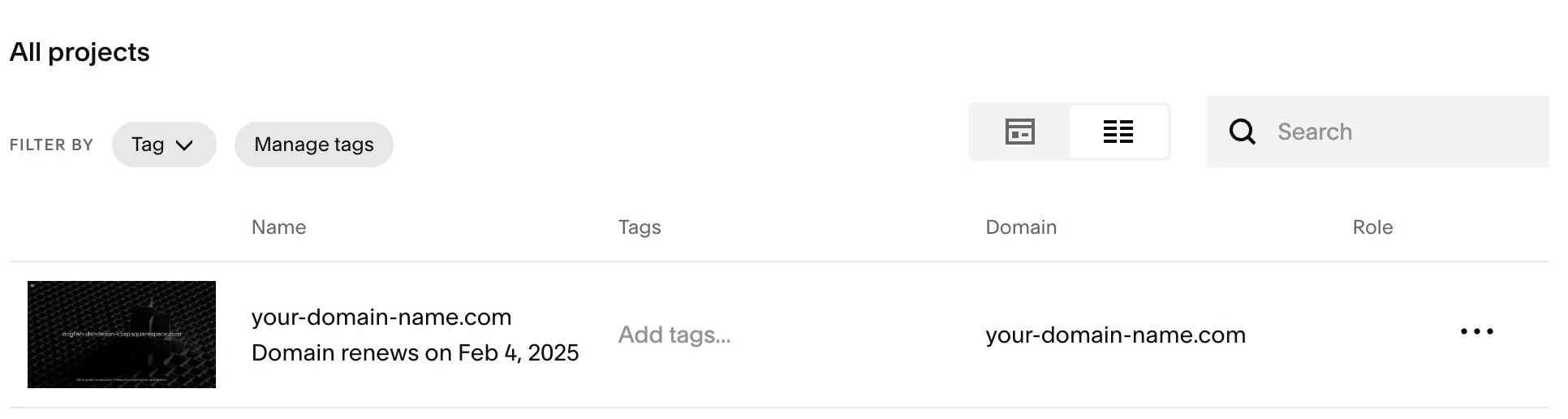
1. Your domain name should now appear in your Squarespace Account Dashboard (https://account.squarespace.com), as shown above.
2. Check that you can see both the Squarespace domain name and your Squarespace website. They will be listed separately.
3. Click on the domain name (not the website) and your domain configuration panel will open, like this:
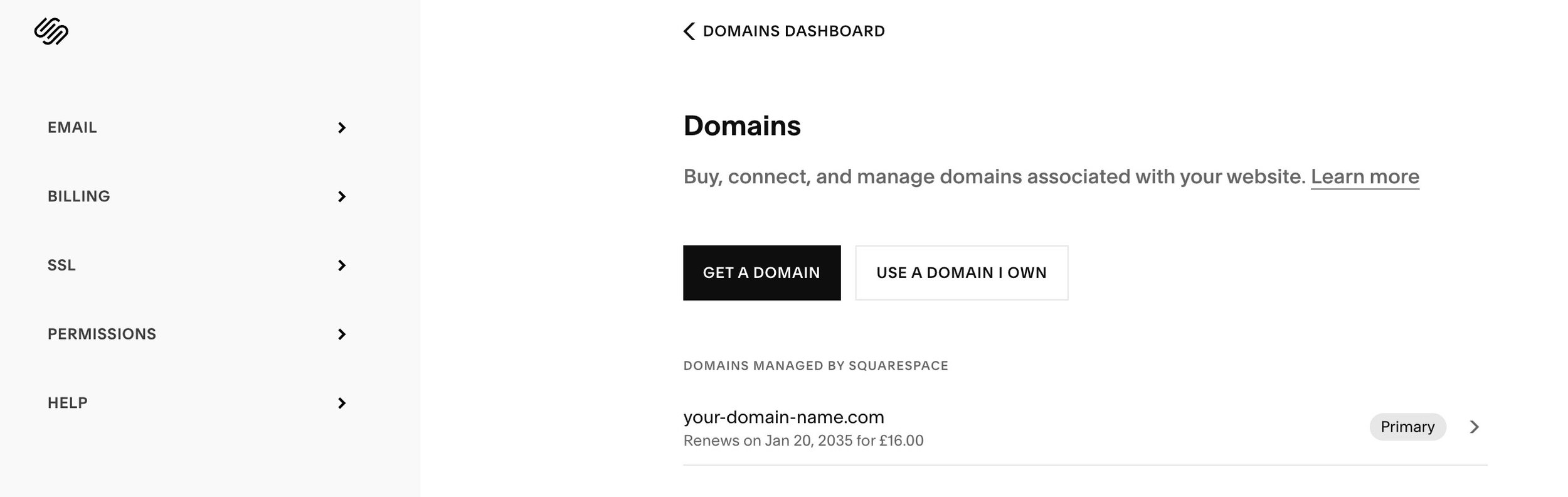
4. Click on the domain name itself in the lower right corner and you’ll see the settings for this domain:

5. Click MOVE DOMAIN (shown highlighted above in yellow). I wish the caption said “Connect to website” as this would be much clearer!
6. When you click the button, you’ll see a list of any Squarespace sites that you administer that have valid billing plans. If you only have one website, you should see it here. Please note that you cannot connect a domain to a site that is in a free trial or is comped.

7. Click the site that you want to use. A checkmark will appear next to this site name.
8. Click SAVE in the top-right corner. Note that if you have more than a few websites to choose from, you will need to scroll up until you can see the save button!
9. You’ll be shown a confirmation window asking you to confirm that you want to move the domain from the parking domain name to the website.
10. Click CONFIRM. The domain will be connected to the new site.
Note that it may take some time (from 1 to 72 hours) for this change to complete and then a further period of time for the SSL certificate to be generated so that your site URL is prefixed with https://. You must wait for this to complete
After the SSL certificate has been generated, you can set the domain as the Primary Domain. To do this:
Open the Domains panel.
Click the three dots next to the domain you want to set as your primary domain.
Click Set as primary domain.
In the pop-up message, click Set.
Your new primary domain displays a Primary label in the Domains panel.
Did this help?
Let me know if this guide helped you! If you are still struggling and you’d like more help, you can book and pay for an expert to help you:
