
There’s a bug on Squarespace 7.1 that will negatively affect your site’s search (SEO) performance. This post explains the problem and explains how to workaround it.
We all need Squarespace to fix this bug! If it is affecting your website, please raise a support ticket with Squarespace and ask them to fix it for the benefit of other users. If you’re a Squarespace Circle member, you can upvote this request.
What is the issue?
Let’s get straight to it. Squarespace is adding the text “Make it stand out” and “Whatever it is, the way you tell your story online can make all the difference.” to every image block that you add to your website, on every product, evey blog post, every event page and every Classic page section. The only exception is Fluid Engine page sections but, even if you use the latest content editor on layout pages, you cannot use Fluid Engine for Blog Posts, Events, or Products. These all use the “Classic” editor, and so every Image Block will include this hidden demo text - unless you manually delete it, one image at a time.
This text is then added to your website’s sitemap and this seriously affects your site’s SEO. The text is hidden, so although your visitors may not see it, the search engines will. This means they’ll index it and consider this content to be part of your site.
At this point you’re probably thinking “Seriously? This can’t be correct, can it?” Try this Google search for “Whatever it is, the way you tell your story online” and you’ll see how many sites are affected. Check your sitemap! Read on if you’d like to understand what a sitemap is and how to view it. Although these tags are supposed to have been deprecated by Google, you’ll see that the phrases are still being indexed!
What is a sitemap?
Every Squarespace website has a sitemap. It is a list of URLs used by the website and it tells search engines about the structure of your site’s content. Squarespace automatically update your sitemap every time you add or edit content, usually within an hour. This allows search engines to automatically discover the latest content on your site. It supposed to be SEO-friendly!
How can I view my Squarespace sitemap?
You can view your sitemap by typing your site’s URL followed by /sitemap.xml in your browser. You should see a list of URLs, but I’ll bet that you’ll also see the demo text “Make it stand out” and “Whatever it is, the way you tell your story online can make all the difference”. If you find some of this text, it is likely to be affecting your site’s search (SEO) performance.
Does this affect all Image Blocks?
It affects all simple/inline Image Blocks on Classic page sections (not Fluid Engine) added since June 2021. “Simple” or “Inline” refers to the basic Image Block, configured to show the image with optional captions below or overlaying the image. The issue does not occur when you set the Image Block to Poster, Card, Overlap, Collage or Stack mode, as the demo text will be visible on the page and so you’ll remember to overtype it with your own text.
How can I remove the demo text from my images?
You can do this as follows:
1. Click the Design tab of the first Image Block, changing the design from Inline to Card. When you do this, you'll see the text on the page beside the image.
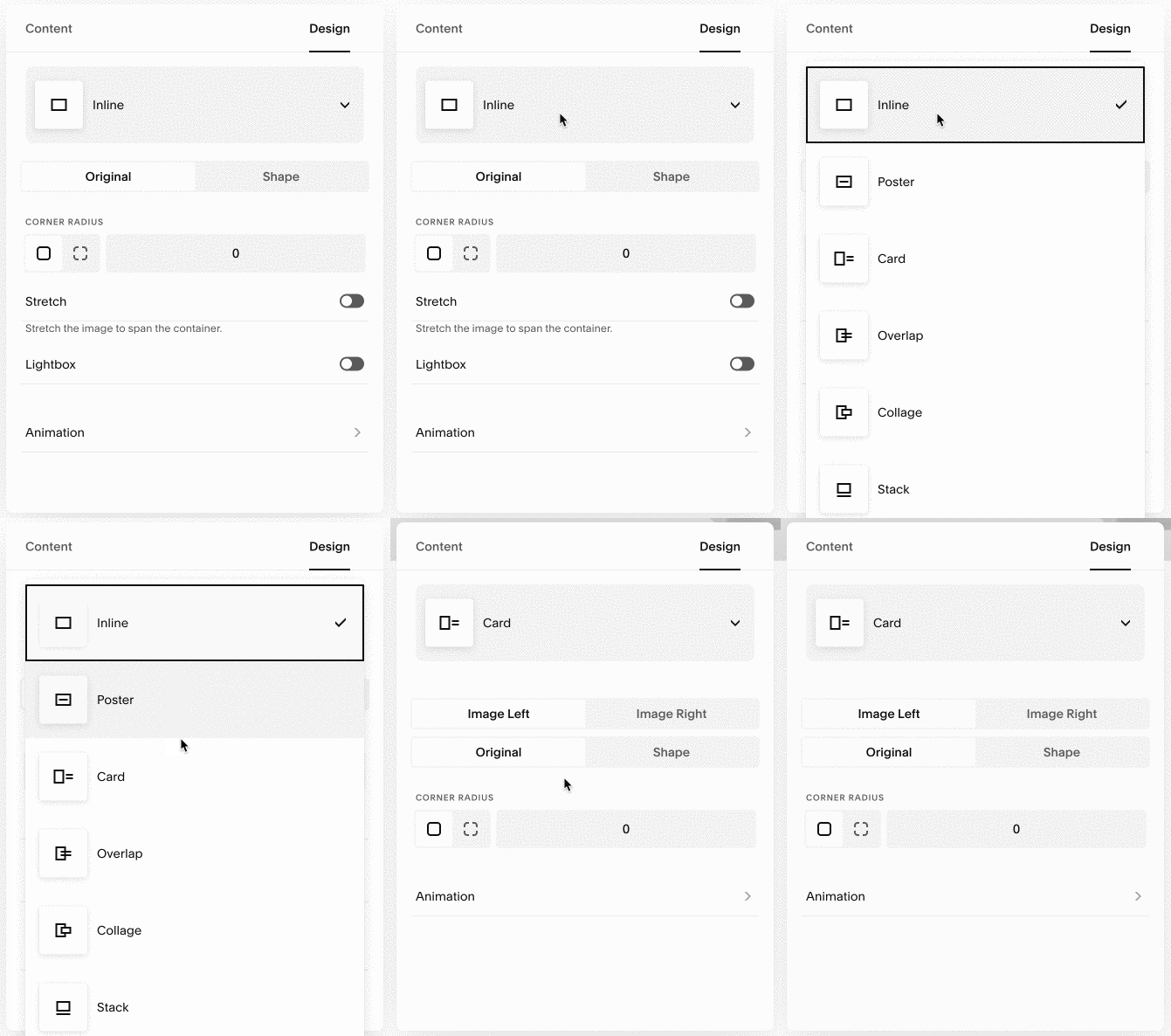
2. Select the demo text and delete it.
3. After deleting the text, set the design back to Inline (if this is the design you were using!) and save your changes.
4. Repeat for each image.
