
Introduction
If you’re using Squarespace to build an online store, the cart page is a crucial element, serving as the final checkpoint before customers make a purchase.
Squarespace already has a streamlined the cart page that is functional and visually appealing. The Product Titles, Quantities and Product Prices are clear, and the Product Thumbnails are automatically matched to a product’s colour variant, but there’s always more that can be done.
For example, there are instances where adding text to the cart page can significantly enhance the user experience. This short guide explores some of the reasons why adding text to the cart page can help, and then provides a way to add a simple text-only message.
Pause for thought
Customers tend to pause and contemplate their purchase when they reach the cart page, so it’s an ideal opportunity to provide them with timely information about their purchase. For example, in the interests of transparency and trust, you may want to explain that additional fees may be added at checkout. This can be particularly important when selling internationally when shipping costs and/or taxes may a larger effect on the overall cost of an order.
If you’ve used Etsy, you’ll know how helpful it can be to see estimated production and/or delivery times, and to know read an overview of the seller’s returns policy. Adding this to the cart page helps to set the customer’s expectations early on.
Another example is when a customer is purchasing in a currency other than their own. They may need to consider the cost of currency conversion charges that their card provider will levy. Although these costs aren’t charged by the seller, warning the customer about them can foster transparency and trust, reducing the likelihood of abandoned carts due to unexpected costs during checkout. As the Squarespace checkout page is notorious for not being customisable (due to rigorous security controls), the cart page is your last opportunity to provide customers with an explanation.
How to add a static message
Here’s an example of a Squarespace Cart page with the text “Please note that…” added using the instructions below.
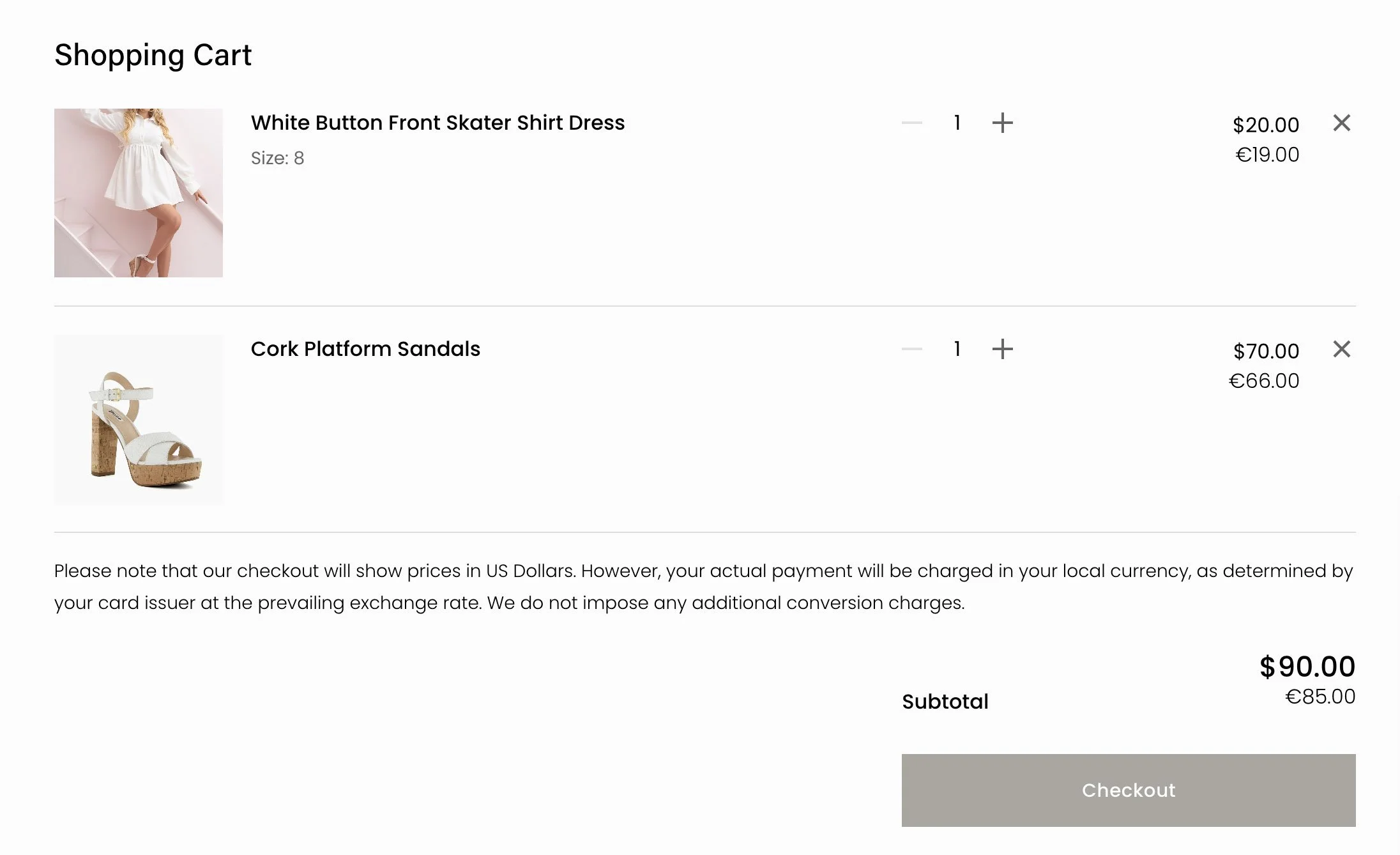
The solution is a really straightforward and can be added to any Squarespace website. It only requires a few lines of CSS (that’s “styling code” to the unfamiliar) that you can add to the Custom CSS panel of your Squarespace website. If you’re not sure where to find this panel, this guide will help!
/**************************************
Add message to the Cart page
Copyright SF Digital https://sf.digital
Use freely in your Custom CSS but
do NOT re-publish.
**************************************/
#cart .cart-container::after {
  content: "Your text here.";
  font-size: 14px;
}
#cart .cart-row:last-of-type {
  margin-bottom: 17px;
}
When you’ve added this to the Custom CSS panel, save your changes, and then refresh your website by pressing Cmd-R (Mac) or F5 (Windows). The message won’t appear on an empty checkout so, if you haven’t already done so, add at least one product to your cart before viewing it!
If you’d prefer the text to be shown below the Checkout button, you can do this with the following CSS instead. However, I’d always recommend adding it above this button because users won’t always scroll past this button, especially on mobile devices, so may miss your message entirely!
/**************************************
Add message to the Cart page
Copyright SF Digital https://sf.digital
Use freely in your Custom CSS but
do NOT re-publish.
**************************************/
#cart #sqs-cart-root::after {
  content: "Your text here.";
  font-size: 14px;
}
#cart #sqs-cart-container {
  margin-bottom: 17px;
}
Did this help?
Next steps
I don’t provide support for the free plugins on this website but I’m always keen to hear from other Squarespace users. You can message me directly via the Squarespace Forum (if you're a member) or, if you have an idea or a comment, feel free to message me here.
FAQ
Can I right-align a short message?
Yes. Add “float: right;” on a new line just below “font-size: 14px;” and save your changes.
Can a link be added to the message?
No. This was built for simplicity using a CSS-only method. As CSS cannot be used to add a link. For this you’ll need a developer to write more complex code using JavaScript.
Read my other free Squarespace guides
