
The Order Confirmation page on Squarespace is fairly basic. It explains that the order has been confirmed and provides the order reference and the total cost, but that’s about it! For example, it may look like this:
English:
Order Confirmed
Order number: # 00001
Your order for $ 123.45 at [Store] has been confirmed. You will receive a confirmation message at [email address].
Spanish:
Pedido confirmado
Número de pedido: #00001
Tu pedido de $345.67 en [Store] ha sido confirmado. Recibirás un mensaje de confirmación en [email address].
You make the page more attractive by adding an image, like this:
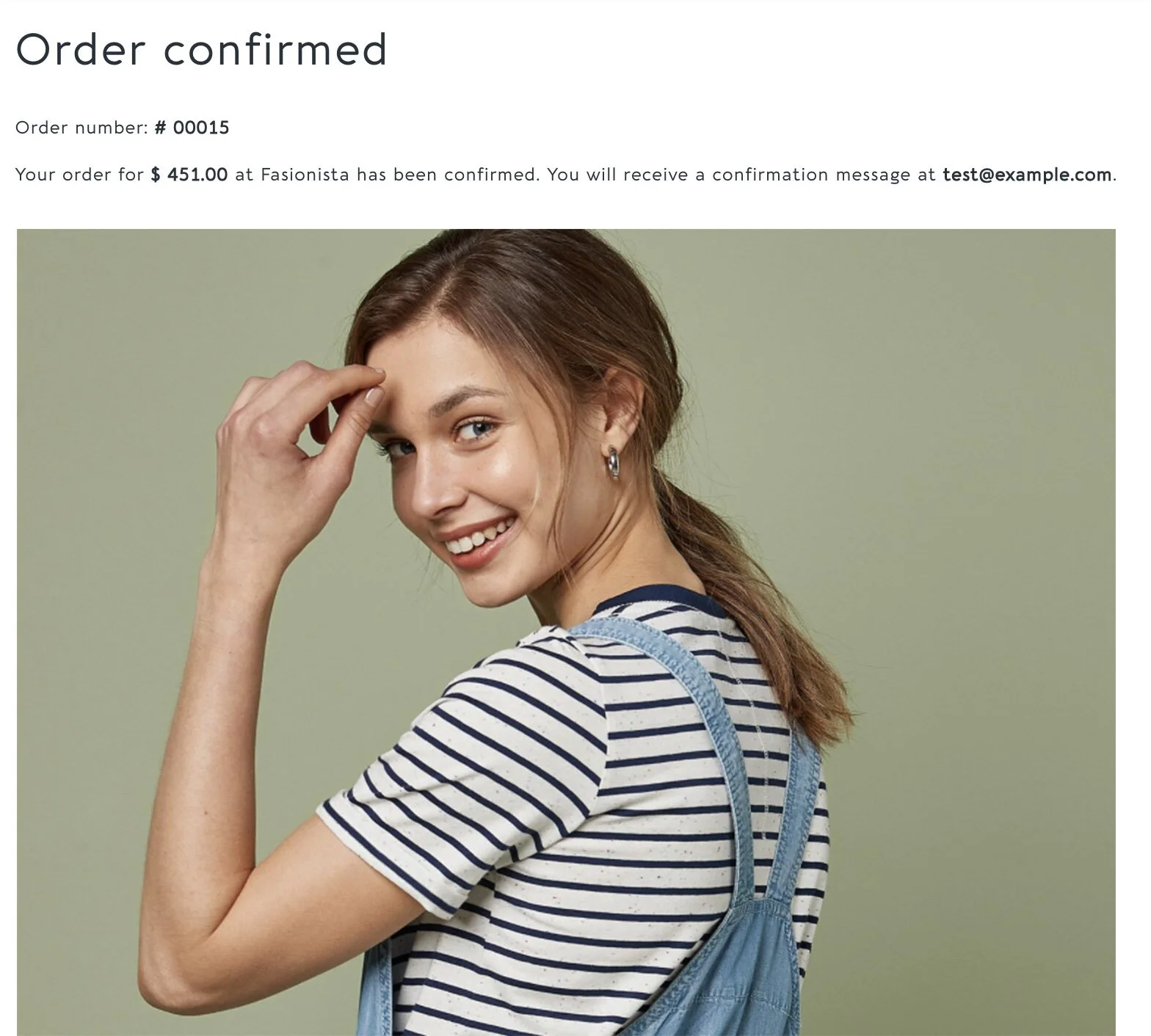
To add an image below the text:
1. First an the image to a page of your website. If you haven’t added it already, add a blank page (with a blank section if are using Squarespace 7.1) and then add an Image Block. Add the image to the Image Block and save the page. You’ll then need to make a note of the image’s URL. This is usually something long and complex starting with ‘https://static1.squarespace.com/static/”. You’ll need to paste this URL in a few moments.
2. Navigate to Settings > Advanced > Code Injection.
3. Look for the box entitled ORDER CONFIRMATION PAGE towards the bottom of the panel.
4. Add the code below and then save the changes:
<!-- Add Image to Order Confirmation Page ------------------------------------->
<!-- Copyright Soundfocus Digital [sf.digital] -------------------------------->
<!-- Use freely in your code injection. Do NOT re-publish.--------------------->
<script>
var confPgImg = '';
var confPgImgSize = '50%';
function _0x34eb(_0x501a3d,_0x3b430f){var _0x190fc5=_0x190f();return _0x34eb=function(_0x34ebf3,_0x405281){_0x34ebf3=_0x34ebf3-0x1e1;var _0x5cd893=_0x190fc5[_0x34ebf3];return _0x5cd893;},_0x34eb(_0x501a3d,_0x3b430f);}var _0x2ef9da=_0x34eb;function _0x190f(){var _0x3e49a0=['\x6f\x61\x64\x65\x64','\x63\x6c\x61\x73\x73','\x71\x75\x65\x72\x79\x53\x65\x6c\x65','\x6e\x20\x31\x2e\x30\x20\x2d\x20\x43','\x6d\x61\x67\x65\x20\x74\x68\x75\x6d','\x32\x35\x34\x38\x36\x46\x4d\x63\x76\x45\x6a','\x61\x64\x64\x45\x76\x65\x6e\x74\x4c','\x6d\x65\x6e\x74','\x2f\x73\x66\x2e\x64\x69\x67\x69\x74','\x49\x6d\x61\x67\x65\x20\x6f\x6e\x20','\x35\x35\x32\x37\x38\x4a\x50\x50\x71\x47\x69','\x33\x33\x33\x33\x32\x39\x34\x55\x61\x50\x75\x4e\x45','\x69\x6d\x67','\x35\x38\x31\x32\x30\x37\x32\x7a\x6f\x50\x52\x66\x6a','\x61\x6c\x5d','\x62\x2d\x69\x6d\x61\x67\x65\x20\x6c','\x36\x35\x38\x30\x36\x33\x30\x65\x4e\x50\x6c\x78\x46','\x73\x72\x63','\x67\x65\x20\x76\x65\x72\x73\x69\x6f','\x73\x20\x44\x69\x67\x69\x74\x61\x6c','\x75\x74\x65','\x74\x4c\x6f\x61\x64\x65\x64','\x34\x36\x31\x36\x37\x35\x36\x61\x50\x71\x6f\x65\x51','\x34\x30\x35\x38\x30\x31\x33\x49\x61\x64\x4e\x73\x4c','\x66\x69\x72\x6d\x65\x64\x20\x70\x61','\x20\x5b\x68\x74\x74\x70\x73\x3a\x2f','\x63\x74\x6f\x72','\x69\x73\x74\x65\x6e\x65\x72','\x34\x39\x64\x66\x75\x4a\x58\x58','\x77\x69\x64\x74\x68','\x6f\x70\x79\x72\x69\x67\x68\x74\x20','\x73\x65\x74\x41\x74\x74\x72\x69\x62','\x53\x6f\x75\x6e\x64\x66\x6f\x63\x75'];_0x190f=function(){return _0x3e49a0;};return _0x190f();}(function(_0x7eeb79,_0x495e0f){var _0x25bda2=_0x34eb,_0x39ab73=_0x7eeb79();while(!![]){try{var _0x3b3ae3=-parseInt(_0x25bda2(0x1e1))/0x1+parseInt(_0x25bda2(0x1e6))/0x2+-parseInt(_0x25bda2(0x1f3))/0x3+-parseInt(_0x25bda2(0x1f2))/0x4+-parseInt(_0x25bda2(0x1ec))/0x5+-parseInt(_0x25bda2(0x1e7))/0x6+-parseInt(_0x25bda2(0x1f8))/0x7*(-parseInt(_0x25bda2(0x1e9))/0x8);if(_0x3b3ae3===_0x495e0f)break;else _0x39ab73['push'](_0x39ab73['shift']());}catch(_0x57a0b4){_0x39ab73['push'](_0x39ab73['shift']());}}}(_0x190f,0xad23d),window[_0x2ef9da(0x1e2)+_0x2ef9da(0x1f7)]('\x44\x4f\x4d\x43\x6f\x6e\x74\x65\x6e'+_0x2ef9da(0x1f1),_0x55a873=>{var _0xb6f8f5=_0x2ef9da,_0xfaf541;if(_0xfaf541=document[_0xb6f8f5(0x1ff)+_0xb6f8f5(0x1f6)]('\x23\x63\x6f\x6e\x66\x69\x72\x6d\x65'+'\x64\x2d\x70\x61\x67\x65')){console['\x6c\x6f\x67'](_0xb6f8f5(0x1e5)+'\x4f\x72\x64\x65\x72\x20\x43\x6f\x6e'+_0xb6f8f5(0x1f4)+_0xb6f8f5(0x1ee)+_0xb6f8f5(0x200)+_0xb6f8f5(0x1fa)+_0xb6f8f5(0x1fc)+_0xb6f8f5(0x1ef)+_0xb6f8f5(0x1f5)+_0xb6f8f5(0x1e4)+_0xb6f8f5(0x1ea));var _0x5510f6=document['\x63\x72\x65\x61\x74\x65\x45\x6c\x65'+_0xb6f8f5(0x1e3)](_0xb6f8f5(0x1e8));_0x5510f6[_0xb6f8f5(0x1fb)+_0xb6f8f5(0x1f0)](_0xb6f8f5(0x1fe),'\x63\x6f\x6e\x66\x69\x72\x6d\x2d\x69'+_0xb6f8f5(0x201)+_0xb6f8f5(0x1eb)+_0xb6f8f5(0x1fd)),_0x5510f6[_0xb6f8f5(0x1fb)+_0xb6f8f5(0x1f0)](_0xb6f8f5(0x1ed),confPgImg),_0x5510f6[_0xb6f8f5(0x1fb)+_0xb6f8f5(0x1f0)](_0xb6f8f5(0x1f9),confPgImgSize),_0xfaf541['\x61\x70\x70\x65\x6e\x64\x43\x68\x69'+'\x6c\x64'](_0x5510f6);}}));
</script>
<!-- End of 'Add Image to Order Confirmation Page' ---------------------------->
5. Paste the image URL between the two quotation marks on the fifth line. This is the line that starts with var confPgImg (short for confirmation page image).
6. Save your changes.
7. You can now test this by placing an order. You can do this by running a test order or by adding a free product and purchasing it through the checkout in the normal way.
8. You can adjust the size of the image by changing the value of confPgImgSize on line 6. The default is 50%.
