

Built a Squarespace website and realised you can’t take payments using a popular payment method? You’re not alone. I’m asked about this several times a week, and here’s what I tell potential clients. Depending on where you and your customers are located, Squarespace Commerce natively supports some payment services but not others.
Afterpay/Clearpay
Squarespace added Afterpay in February 2021, for sites in the United States, Canada (in any province except Quebec, where Afterpay isn't supported) Australia and New Zealand. Afterpay is also supported in the UK where it is known as ‘Clearpay’. Whether you can use Afterpay/Clearpay is often determined by the merchant category code (or MCC) associated with your payment processor account.
For your customers to pay using Afterpay or Clearpay, keep in mind:
They must be located in the same country as you
They must meet Afterpay/Clearpay’s eligibility requirements
The purchase must be under their credit limit
Their order total must be over one dollar/pound, and under their country’s spending limit
They haven't selected a local pickup option at checkout
Klarna
Klarna has been available on Squarespace since 2024, but with some conditions. To offer Klarna on your Squarespace store:
You need to sell physical products.
You need to use Squarespace Payments, or Stripe, as your payment solution.
If your business is outside the UK, or a supported country in the European Economic Area (EEA), you can only sell to customers in your own country, and all transactions must be in your country's currency. For example, a US business can only sell to customers in the US and must charge in US dollars.
If you’re a business in the UK or a supported country in the European Economic Area (EEA), you can sell to customers across the European Economic Area (EEA), UK, and Switzerland, and all transactions must be in the currency of the customer’s country. For example, a UK business can accept Klarna in Euros to sell to a customer in Germany.
PayPal
Although PayPal has buy now, pay later solutions like Pay in 3 (in the United Kingdom) and Pay in 4 in some other countries but Squarespace doesn’t actively support them, as they prefer all payments to go via Stripe/Squarespace Payments.
iDEAL, Zip or Sezzle
Squarespace Commerce does not natively support iDEAL, Zip or Sezzle. We’re hoping they’ll add them by 2027 but we don’t have any news to share.
If you’ve already built a site on Squarespace and you want to use an unsupported payment method, you may want to consider combining the superb design features of Squarespace with the commerce features of Shopify (affiliate link) for around $9 USD more per month.
Shopify - a Squarespace competitor - has been quick to embrace “buy now, pay later” payment methods, and the good news is that you can use Shopify’s ecommerce features in conjunction with your Squarespace website. Grab your Shopify Lite Free Trial (affiliate link) and give it a try with your products to see if it will suit your circumstances.
It’s completely free to try this with your Squarespace website. What have you got to lose?
How does it work?
If you want to stick with your beautiful, well-designed Squarespace site, but need some features that it does not support, then one option is to keep Squarespace for the website design features that it offers, and replace all of Squarespace’s commerce features (their cart, checkout, order emails, shipping options, tax management, inventory and so on) with those of Shopify.
The good news is that Shopify offer a starter solution called Shopify Lite. For around $9 (USD) per month, you can use the core features of Shopify - including their payment options - with your Squarespace website. You’ll be replacing everything in Squarespace Commerce with the equivalent features in Shopify and so the new sales workflow will work something like this example (using “Afterpay”):
What payment methods does Shopify support?
Shopify supports different payment providers in different countries. For example, in the UK they include iDEAL via Mollie and Pay Later with Klarna. In Belgium they support Bancontact, iDEAL, PUT IT ON LAY-BUY and QuickPay and in Australia they support Afterpay, Laybuy and Zip (Pay) amongst many others.
As of June 2019, Shopify Payments is available in the Netherlands, including iDEAL as a payment method for Dutch shoppers. For Danish shoppers, Shopify Payments now supports Visa Dankort’s debit payments, and you can sell in either Danish Krone or Euros.
Add Shopify to Squarespace
With just a few simple steps, you can start selling right away. Create an account in Shopify, add your product, generate your Buy Button code, and copy and paste it onto a page of your Squarespace website. Your visitors can add multiple items to their shopping cart and enjoy secure checkout, or they can come back later to complete their purchase. You’ll be able to accept additional payment methods and take control of sales tax. All this for around $9 USD per month!
The Basics
1. Click this link to start a free trial of Shopify (affiliate link). When you click the free trial button, you’ll see the form below, asking you for some basic information - your email address, a new password and a name for your store. The name of the store will be used in all the order-related emails so you’ll want it to match your current Squarespace site.

How to start your free trial
2. Navigate to the Products section or follow the prompts to add your first product.

3. Just like in Squarespace, you’ll be prompted for a product title, description, image and price. Add the required information and click the Save button in the top-right of the window. Congratulations, you’ve now added your first product to Shopify!

4. In the Shopify navigation, look for the SALES CHANNELS section (at the bottom). You should only see one channel called Online Store. Click the plus (+) button to see a list of additional Sales Channels.

5. Click the plus (+) button beside Buy Button.

6. After a few seconds, Buy Button will be added to the SALES CHANNELS section and a button will appear entitled Create Buy Button.

7. Click Create Buy Button. A window will appear prompting you to select one of your products.
8. Select the product you added (by clicking the radio button on the left) and then click Select product. A window will appear with many options (see below).

9. Ensure the Layout Style of Basic is selected. This will allow us to add a button to a product that already exists on our Squarespace website. If you expect purchasers to want to buy more than one, you can go into Layout options and tick Show quantity field. There are some other style options available here such as whether the button is left-aligned or centered. It’s a good idea to set these correctly now because once you’ve copied the buy button code the settings cannot be changed - at least not without going through these steps again.
If your products don’t already exist on Squarespace, or if you need to have variants with different prices, you may want to use the Full view option (instead of the Basic option). The full view includes the product title, price and description as well as images of the product. However, this isn’t the way I’ve described it in this article. If you do want to use other options, I recommend you follow this guide as it is, and then try the enhanced option later when you are familiar with the steps. To use the enhanced option you’ll want to skip steps 17 & 18 and add a new blank page instead of editing a product. You can then add the code to a Code Block on that new blank page and insert the generated code into it. Anyway, back to the steps..
10. Check the Action when people click dropdown to see that Add product to cart is selected.
11. Click Next (in the top-right corner).
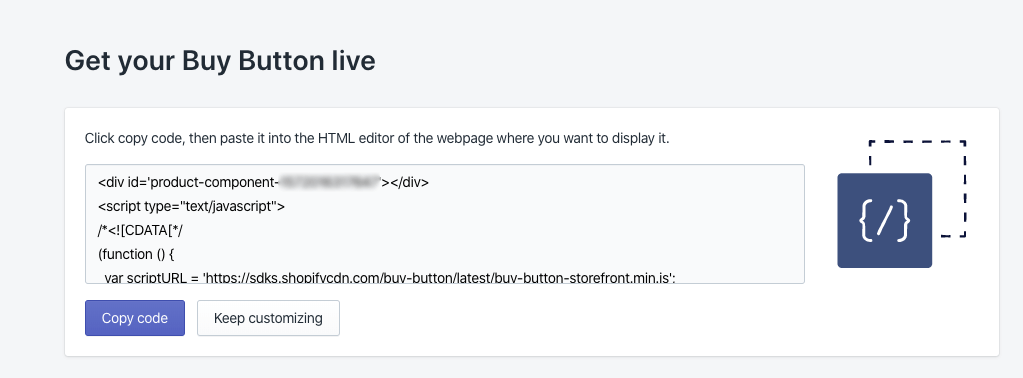
12. The generated code will appear. Copy the code by clicking the button.
13. Logon to your Squarespace website and view the same product on your Products Page.
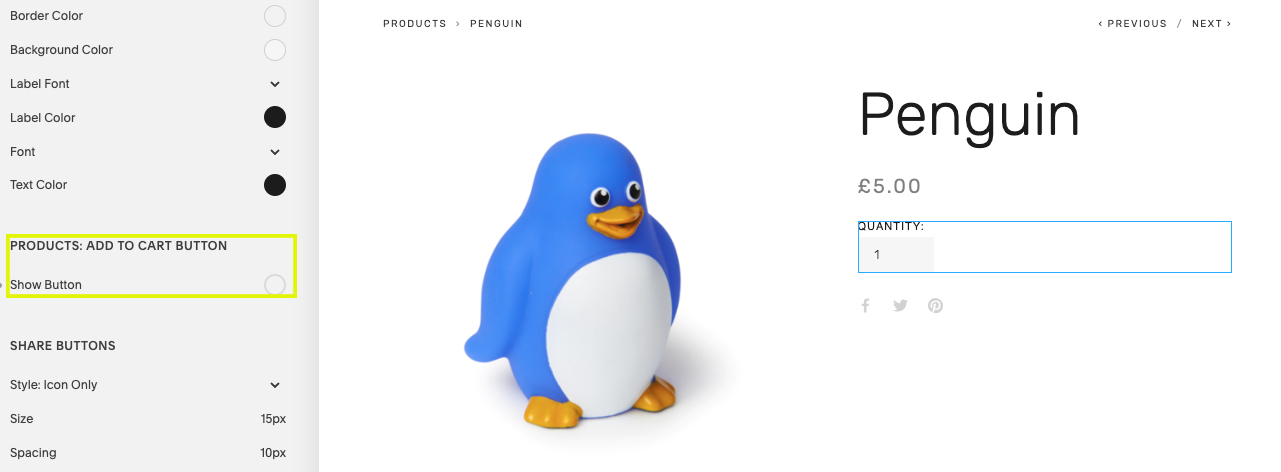
The next step is to hide Squarespace’s Add to Cart button so that you can replace it with the Shopify Buy Button. On Squarespace 7.0 you can do this by following steps 14 to 17. Squarespace 7.1 doesn’t have this option yet, but our extension (see step 23) includes this feature.
14. Open Site Styles (on the Design menu).
15. Click the Add to Cart button to show the styles for the button.
16. Uncheck Show Button to hide the button.
NOTE: If you are using a Brine-family template on Squarespace 7.0 you will also need to disable Ajax Loading otherwise the Shopify code will not work. Whilst you have the Site Styles panel open, look for an Enable Ajax Loading setting. If you find one, disable it.
17. Save the settings and then close the Site Styles panel.
18. Edit the Product.
19. Click Additional Info.
20. Add a Code Block.
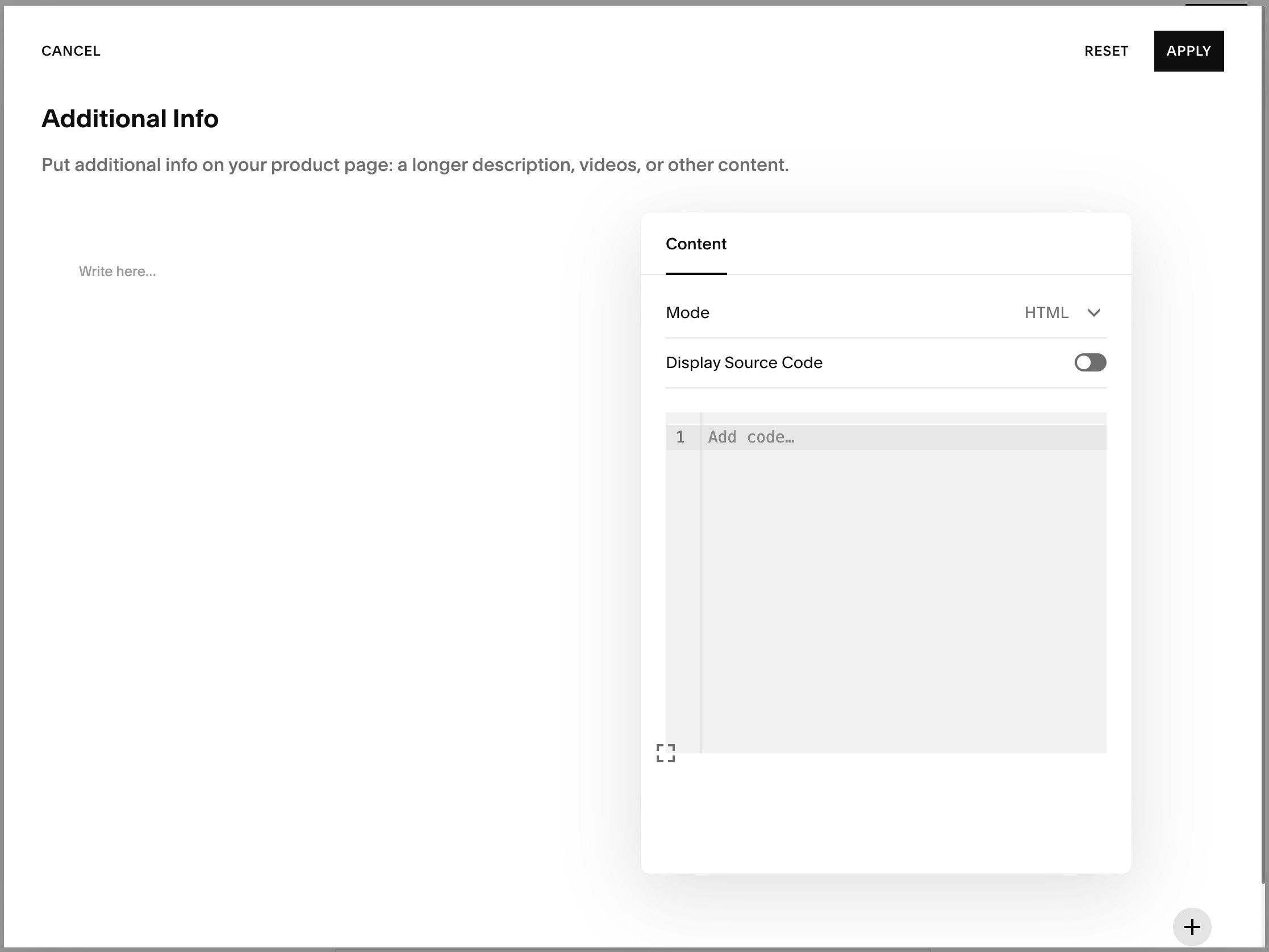
21. Remove the sample code from the Code Block and paste the Shopify code into it.
22. Click Apply and then Save the changes.
23. You’ll now see the Shopify Buy Button on the page but it will be towards the end of the page, below the product image and description. We sell an optional Shopify Buy Button extension that you can add to your Squarespace website to make the button appear wherever you want, for example, just below the product title (as shown in the image above). This extension also allows you to disable Squarespace’s built-in Add to Cart button and Quantity selector, on both Squarespace 7.0 and 7.1.

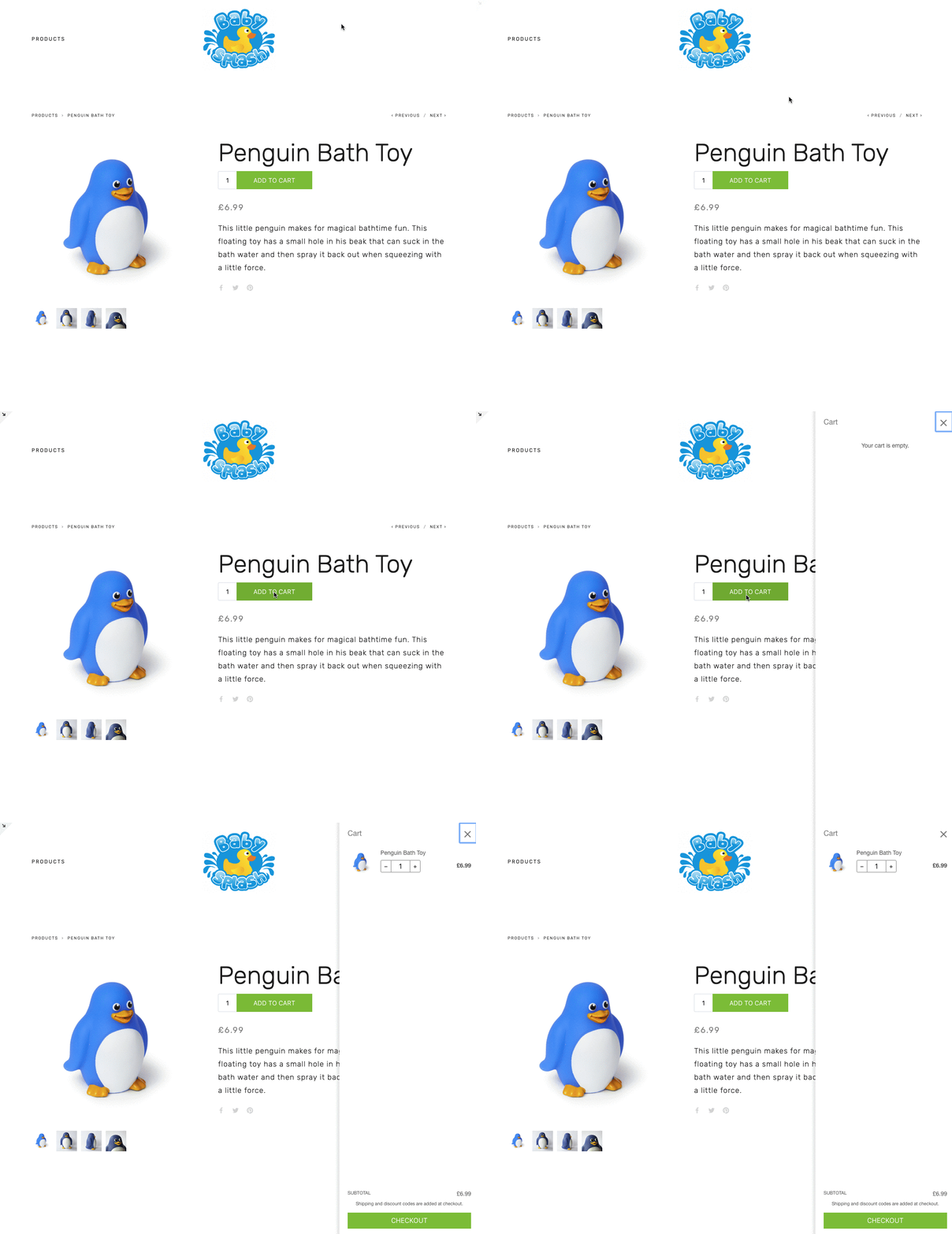
Shopify cart on Squarespace website
24. Click the Buy Button and the product will be added to the Shopify cart, bypassing the limited Squarespace cart. From here, customers can proceed directly to the Shopify checkout where they can pay with whatever payment method(s) you have installed in Shopify.

Adding Payment Providers
To add payment methods to Shopify, click the Settings icon (in the bottom left corner) then click on the Payment providers link.

Scroll down to Alternative payments and select the payment provider you want to use, for example Klarna.
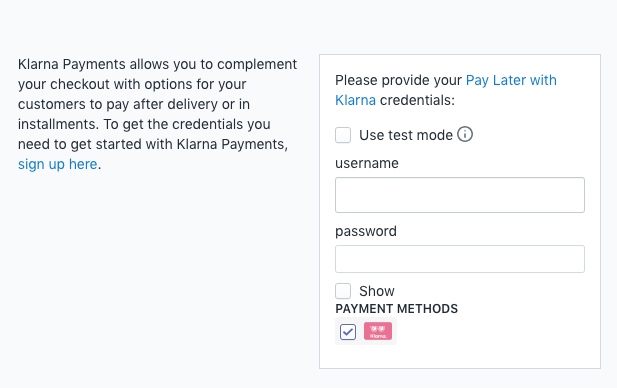
You’ll be asked to enter your login details for the payment provider you have selected. If you don’t have an account yet, click the sign up link.
I hope this article has given you an introduction to taking other payment methods on your Squarespace website. This guide is intended as an introductory guide to using Shopify with Squarespace, but it doesn’t explain how to set up all aspects of payments, tax or shipping. Shopify have some excellent guides to help you do this yourself.
Some of the payment options you can integrate with Squarespace by using Shopify or Sendowl are:
2Checkout
Adyen
Affirm
Afterpay
Alipay Global
Asiabill
Authorize.net
Bambora
Bancontact via Mollie
BitPay
Cartão de Crédito e Boleto via EBANX
Cartão de Crédito em até 12x via EBANX
Chase Paymentech (Orbital)
Checkout.com
Coinbase Commerce
ComproPago - Efectivo(Oxxo, 7Eleven,..), SPEI, Criptomonedas
Credit Card Payments Powered by PayTabs
CyberSource
Dankort Visa Debit
Divido
EBANX Payments in Latin America
Elavon Converge
ePay / Payment Solutions
eWAY Rapid 3.1
First Data Payeezy
G2A Pay
GoCoin
HiTRUST
IATS Payments
iDEAL via Mollie
Ignite Payments
Kash Direct Debit
Klarna
KNPay
Laybuy
Mercado Pago
Mondido Payments
Moneris
MultiSafepay
MyFatoorah
Ogone DirectLink
PagBrasil
PagSeguro
PayBright
PayDollar
PayFort
Payment Express PxPay
PaymentExpress
PAYMILL
PayPal Express Checkout
PayPal Payflow Pro
Paysafe
Paystation
PayU Latam
Pin Payments
PinwheelPay
POLi Internet Banking
Psigate
PUT IT ON LAY-BUY
QuickPay
Realex Payments (Offsite)
Sage Payment Solutions
SecurePay (Australia)
Sezzle
Shopify Payments
Skrill
SOFORT Banking (DIRECTebanking)
Stripe
Tap
Vantiv Integrated Payments
WorldPay (Direct)
WorldPay (Offsite)
Zip
I hope this guide has helped you.
Limitations
As I mentioned earlier, combining Shopify and Squarespace is a workaround. It isn’t a perfect solution, but until Squarespace add some long requested commerce features to their platform, it could be an interim solution for you.
Also, bear in mind that Squarespace and Shopify both have some great features, but they don’t share these features. Where one platform excels, the other doesn’t, and this is true in reverse. If you add Shopify Buy Buttons to Squarespace, you won’t be able to:
use Shopify Apps. You can use built in Shopify features, but third party apps cannot be used.
prompt for product-specific information, such as engraving information. Custom Product Forms don’t exist on Shopify.
Help from a Squarespace Expert
If you don’t have an online store yet, or you’d like a new one, I can build you a brand new Squarespace website or a brand new Shopify website. I’m an approved Squarespace Expert and a Shopify Partner, who can build you a brand new Squarespace website or a brand new Shopify website to meet your aesthetic and functional requirements. New stores start at $7000 (USD) or £5000 (GBP). However, I do not build sites that are a combination of both because I believe the administrative overhead is too much for anything other than a micro business. I think it’s a great way to try Shopify to see if you like it, but once you’ve decided, it’s better to remain on Squarespace or migrate to Shopify.
