
Providing us with access to your site
This guide explains how to provide us with access to your Squarespace website.
This may be necessary for us to:
Install one of our products
Provide support for one of our products, including troubleshooting any issues you are experiencing.
To provide us with access to your site you must invite us as a contributor with Administrator permissions. This guide explains how to do so.
Contributors can have different permissions assigned to them and these decide which settings they are allowed to access. Only Contributors who have been assigned the Administrator role can can access the areas that we need to use, including Code Injection, Custom CSS. It is essential that you provide access to these, otherwise we will not be able to help.
How to provide access
To add as a contributor, please follow the instructions below. These have been copied from the Squarespace support article: Squarespace permissions explained.
1. Open the Settings panel. You can reach this by clicking the tiny ‘cog’ icon at the bottom.
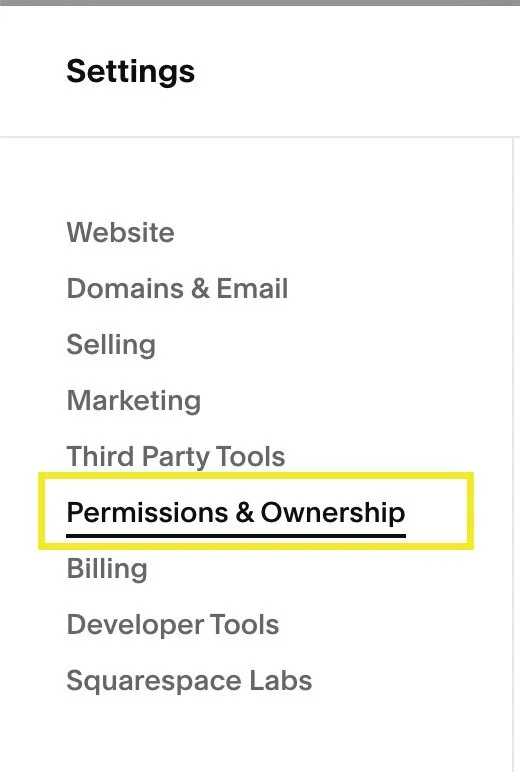
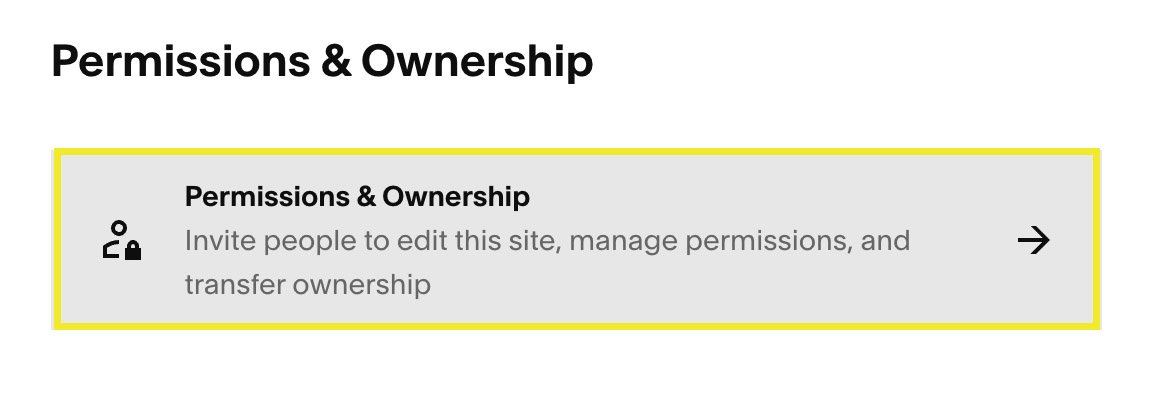
2. From the Settings panel, select Permissions & Ownership and then click the Permissions & Ownership tile.
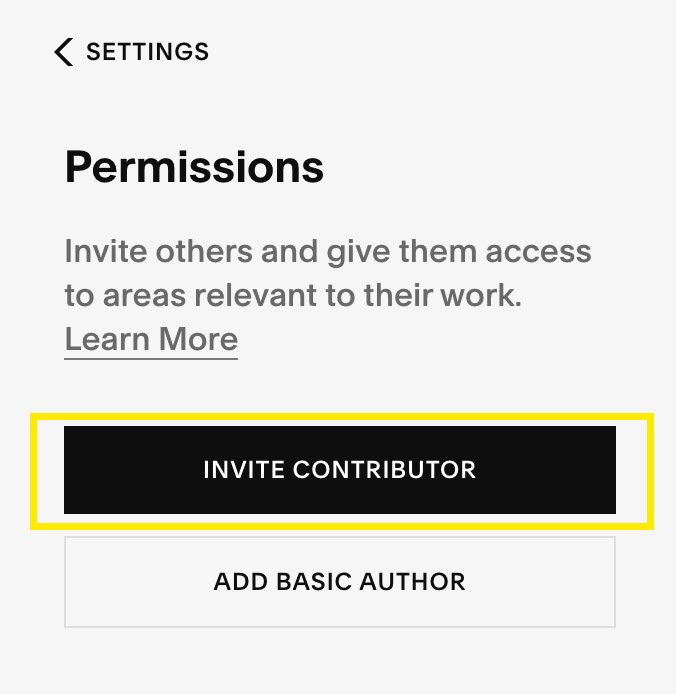
3. Click INVITE CONTRIBUTOR.
4. In the Invite Contributor window, enter our details. These are shown in the screenshot below. Take care not to add any additional spaces or dots to the email address. Please note the email address ends with “sf.digital” - it does not end with “.com”!
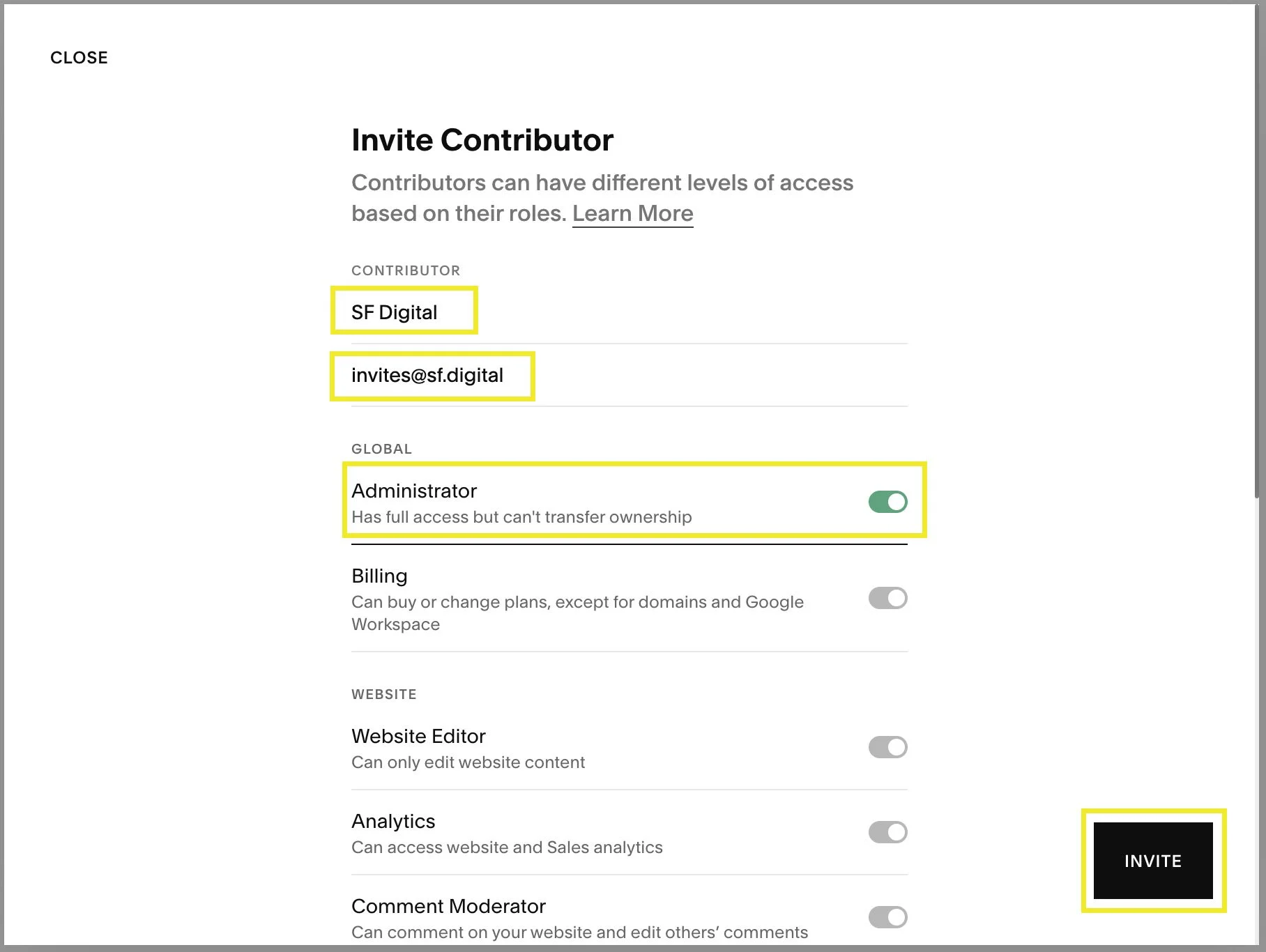
Invite Contributor panel
4. Toggle the Administrator option to on. This is a really important step! No other permissions are required. You should not enable the Let non-admins purchase assets option.
5. Click INVITE.
6. Check that you have received an auto-reply from us telling you that the ‘invites’ mailbox is unattended. This is correct and confirms that we have received your invitation. If you do not receive the auto-reply email, please send us the invitation link manually, by following the steps below.
Update your support ticket
If you have been asked to send us a contributor invitation for a support request you have raised, please reply to the support email and manually paste the invitation link into it, by following these additional steps:
1. In the Permissions panel, look for SF Digital in the list of INVITES SENT.
2. Click SF Digital and you’ll see our permissions on the right-hand panel.
3. Click COPY beside the invitation link (see screenshot below).
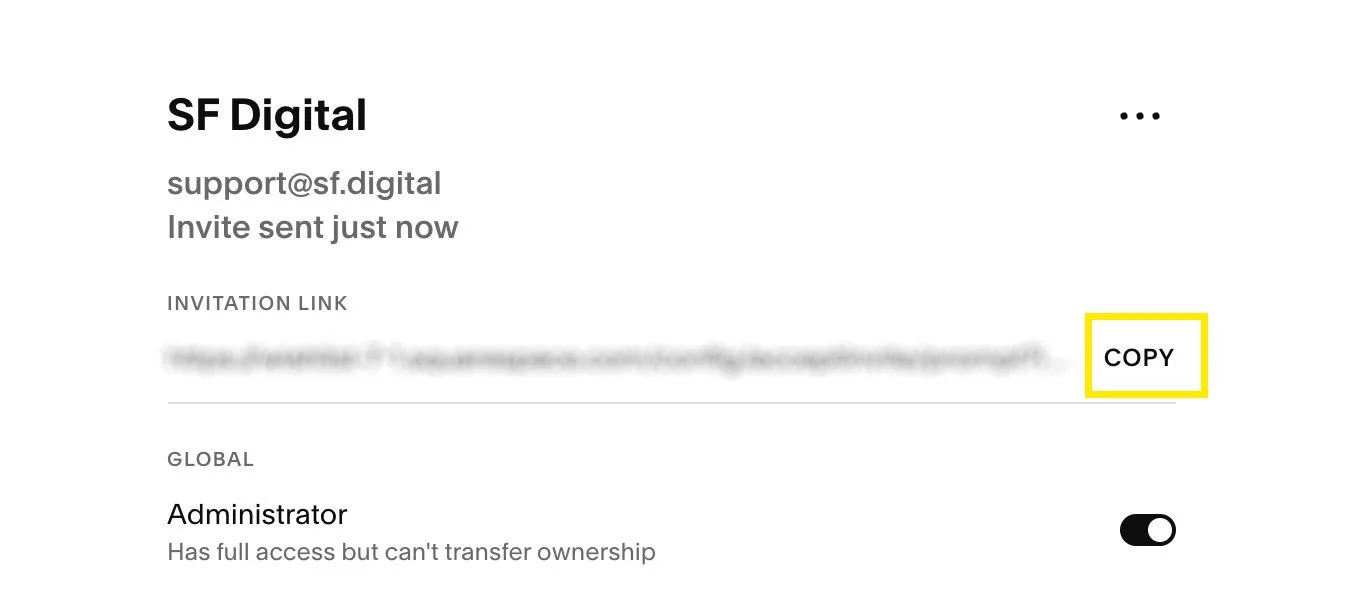
4. Reply to our support email and paste the Invitation Link directly into your reply.